

You can accept tips on YouTube two ways: turn on Super Thanks if your channel qualifies for the YouTube Partner Program, or add an external tip link like Tipper that any viewer can use right away. Super Thanks is easier for viewers but costs you roughly 30% off the top. An external link takes more setup but usually leaves more money in your pocket. Most creators end up running both.
TL;DR:
- External tip links like Tipper allow creators to receive a larger percentage of tips because they bypass YouTube’s 30% fee and eligibility restrictions.
- Setting up Super Thanks requires meeting YouTube Partner Program criteria and involves a straightforward activation process within YouTube Studio, with about 70% revenue retention.
- Running both superimposed tips and external links together caters to different viewer preferences, increasing overall tipping opportunities.
- External payment apps like Venmo and PayPal are free to implement but only effective if viewers already have those apps installed, which can limit international reach.
- Payouts through Super Thanks follow YouTube’s monthly schedule and take roughly 30%, while external tools often process faster and with lower fees.
Table of Contents
- Which Option Fits Your Channel Right Now?
- How Do You Turn On Super Thanks?
- What External Tipping Methods Actually Work?
- How Do You Actually Get Viewers to Tip?
- What Policies and Tax Rules Should You Check First?
- Setting Up Third-Party Tipping Tools With Your Stream Software
- Fees and Payout Speed: What Actually Differs
- What to Do When a Tip Payment Goes Wrong
- Why a Hybrid Approach Usually Wins
- Keep 100% of Every Tip With Your Own Link
- Where to Verify the Official Rules
- Sources
- FAQ
Which Option Fits Your Channel Right Now?
Before you build out a full monetization plan, it helps to see the native and external routes side by side.
- Super Thanks — one-time tips ($2 to $50) on uploaded videos and some Shorts. Requires YouTube Partner Program (YPP) membership. YouTube keeps about 30% of the purchase.
- Super Chat and Super Stickers — live-stream-only tipping during active broadcasts and Premieres, also gated behind YPP.
- External tip links (Tipper and similar) — work with no YouTube eligibility requirement, no signup for the sender, and typically a smaller cut taken out.
- Payment app handles (Venmo, Cash App, PayPal) — free to set up but require the viewer to already have that app installed and an account.
If you’re already in YPP, turning on Super Thanks costs you nothing to enable and adds a frictionless option for casual viewers. If you’re not eligible yet, or you’d rather keep a bigger share of every tip, an external link is the more direct route.
How Do You Turn On Super Thanks?
Enabling Super Thanks is mostly a matter of checking boxes YouTube already knows about your channel. Before you touch any settings, confirm your channel clears these bars:
- You’re an active member of the YouTube Partner Program, which sets its own subscriber and watch-hour thresholds.
- You meet YouTube’s minimum age and are located in a country where Super Thanks is available.
- The specific video is public, not set as “made for kids,” and carries no active Content ID claims.
Once eligibility is confirmed, here’s the setup path on desktop:
- Open YouTube Studio and go to Earn (sometimes labeled Monetization).
- Select Supers and click Get started.
- Review and accept the Commerce Product Module terms. This is a required legal step, not optional fine print.
- Toggle Super Thanks on for your channel, then confirm it’s active on individual videos under each video’s monetization settings.
On mobile, open the YouTube Studio app, tap Earn, then Supers, and flip the same toggle. You can turn Super Thanks off at any time from the same menu if you change your mind.
Revenue split: viewers can send $2, $5, $10, or $50 per tip, and creators keep about 70% after YouTube’s roughly 30% cut. A $10 tip nets you around $7. You can track exact totals and read Super Thanks comments inside YouTube Studio’s revenue reports.

What External Tipping Methods Actually Work?
Super Thanks isn’t the only door open to you, and for a lot of creators, it isn’t even the best one.
Tip links like Tipper generate a personalized page or QR code viewers can pay through instantly using Apple Pay, Google Pay, or a card, without creating an account first. That’s the biggest practical advantage: no signup friction on the sender’s side, and no YPP requirement on yours. The tradeoff is that the transaction happens off YouTube, so you have to actively direct viewers there.
Payment app handles (Venmo, Cash App, PayPal, Ko-fi, Buy Me a Coffee) cost nothing to set up but only work smoothly if the viewer already has that specific app. That’s a real limitation for international audiences.
Stream overlays and alert tools, built with an OBS browser source, can display a real-time notification when someone tips through your external link, mirroring the instant gratification of Super Chat without routing money through YouTube at all.
Where you place the link matters as much as which tool you pick:
- Pin a comment with your tip link on every video.
- Add it to your video description and channel “About” section.
- Feature it on an end screen or in a Community post.
- Overlay it on-screen during live streams.
Pro Tip: Don’t make viewers guess which button does what. Say it plainly: “Hit the Thanks button for a quick on-YouTube tip, or use my link in the description if you’d rather pay with Apple Pay.” That one sentence removes almost all the confusion between the two options.
How Do You Actually Get Viewers to Tip?
Enabling a tip option is the easy part. Getting people to actually use it takes deliberate habit-building, and YouTube’s own creator guidance backs most of these tactics.
- Reply to every tip comment. YouTube specifically recommends replying to Super Thanks comments and pinning a thank-you comment so other viewers see the acknowledgment.
- Say the ask out loud, briefly. A five-second CTA (“If this helped, there’s a Thanks button and a tip link below”) outperforms a wall of text nobody reads.
- Show where the money goes. Creators who explain fund usage, new gear, editing help, production costs, consistently see better tipping behavior than those who stay vague.
- Give visible recognition. Shoutouts, a closing-credits roll, or a Community tab thank-you post all reinforce that tipping gets noticed.
- Test placement. Move your CTA earlier or later in the video and compare Super Thanks analytics against external link clicks over a few uploads.
Pro Tip: Run Super Thanks and an external link side by side. Some viewers want the one-tap convenience of staying on YouTube; others want to keep more of their money going directly to you. Offering both removes the excuse for either group not to tip.
What Policies and Tax Rules Should You Check First?
Before you flip any switch, a few compliance items are worth locking down, because getting them wrong costs more than a missed tip.
- Accepting the Commerce Product Module is mandatory for Super Thanks. Skipping or later violating those terms can suspend your access to fan-funding features.
- Community Guidelines strikes, repeated policy violations, or suspicious payment activity can get Super Thanks revoked from your channel entirely.
- YouTube is explicit that fan-funding tools like Super Thanks are not crowdfunding, and creators remain responsible for complying with applicable tax and reporting laws in their own country.
- Tip income, whether from Super Thanks or an external link, generally counts as taxable income. Keep records of every payout and talk to an accountant about how to report it correctly.
- Confirm your payout banking details in YouTube Studio and in whichever external tipping tool you use, since mismatched account info is the single most common cause of delayed payouts.
Setting Up Third-Party Tipping Tools With Your Stream Software
Most external tip tools follow a similar setup pattern, whether you’re running Tipper, a payment app, or a dedicated alert service.
First, create your tip page or link inside the tool’s dashboard. For a platform like Tipper, that means generating a personalized link and QR code, no account required on the viewer’s end.
Second, if you stream live, connect that link to an alert system. Services built for this generate a unique browser source URL. Copy that URL into OBS Studio (or Streamlabs, or whatever software you use) as a new Browser Source layer in your scene. Set the dimensions to match your overlay area, usually a corner box around 400×200 pixels, and position it so alerts don’t cover your face cam or gameplay.
Third, test the full loop before going live: send a small test tip yourself, confirm the on-screen alert fires, and check that the notification email or dashboard entry arrives correctly.
Fourth, add the link everywhere viewers will actually see it, description, pinned comment, and an on-screen graphic during the stream itself, not buried in an “About” tab nobody visits.
Fifth, revisit the setup every few months. Streaming software updates, browser source caching issues, and expired links are the most common reasons an overlay silently stops working. A quick test tip before a big stream catches that problem before your audience does.
Fees and Payout Speed: What Actually Differs
The fee structure is where native and external tipping diverge the most, and it’s worth understanding before you commit to one path exclusively.
Super Thanks takes roughly 30% off every tip before it reaches you, and payouts follow YouTube’s standard monthly AdSense payout schedule, the same cycle your ad revenue already runs on. That means a tip sent today might not land in your bank account for several weeks.
External tip links vary by provider, but the model is generally a transaction fee plus a standard payment processing charge, rather than a flat 30% platform cut. Payout timing also tends to move faster since it isn’t tied to YouTube’s monthly revenue cycle.
Payment apps like Venmo or PayPal charge their own standard transfer fees, and instant transfers usually cost extra compared to standard multi-day transfers. Buy Me a Coffee and Ko-fi take a small platform percentage on top of payment processing fees.
The practical takeaway: if speed and take-home percentage matter more to you than staying fully inside YouTube’s ecosystem, external tools generally win on both counts. If simplicity for the viewer matters most, Super Thanks wins there instead.

What to Do When a Tip Payment Goes Wrong
Disputes are rare, but when they happen, how you handle them affects both your relationship with that viewer and your standing with the platform.
For Super Thanks issues, missing revenue, a tip that doesn’t show up in analytics, start in YouTube Studio’s revenue reports, since most “missing” tips are just a reporting delay rather than a lost payment. If the discrepancy persists past a normal processing window, YouTube’s Creator Support is the correct escalation point, not a public comment reply.
For external tip links, resolution depends on the payment processor, not the tipping platform itself. Apple Pay and Google Pay transactions run through the underlying card network’s dispute process, so a refund request typically goes through your payment processor’s support channel rather than the tip tool’s dashboard.
A few habits reduce disputes before they start:
- Confirm your payout details are current in every tool you use, since a wrong bank account is the most common cause of a “missing” tip.
- Keep a simple log of tip amounts and dates outside of any single platform, so you have your own record if a dashboard glitches.
- Respond to viewer questions about a tip quickly and publicly when appropriate. It reassures other viewers watching the exchange.
Most payment disputes resolve within a normal processing window once the right support channel gets involved. Panic is rarely warranted, but a paper trail always helps.
Why a Hybrid Approach Usually Wins
Treating Super Thanks and external tip links as competing choices misses the point. They solve different problems. Super Thanks removes friction for a viewer who’s already logged into YouTube and wants to tip in two taps. An external link removes YouTube’s cut and its eligibility gate entirely.
A tool like this kind of external tip link works well as the complementary half of that pair, since it emphasizes instant payment without requiring the sender to sign up for anything. Running both means a subscriber and a first-time viewer each get a tipping option that fits how they actually want to pay.
— Tipper
Keep 100% of Every Tip With Your Own Link
Super Thanks takes roughly 30% before it ever reaches you, and it only works if your channel already cleared the YouTube Partner Program bar; an external tipping service skips both problems.
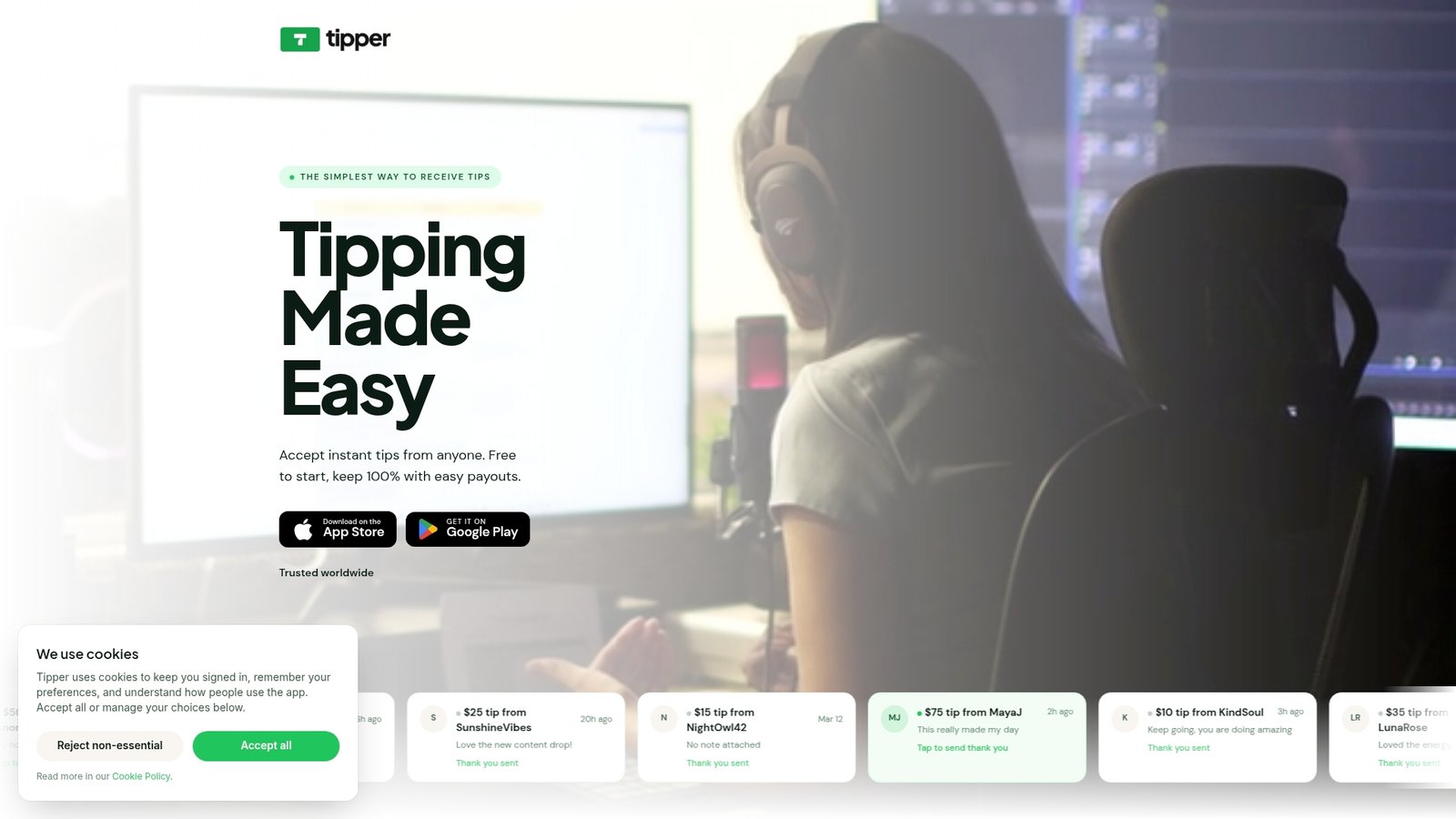
That matters most for creators still building toward YPP eligibility, since it means you can start collecting tips today instead of waiting on subscriber and watch-hour thresholds. It also matters for eligible creators who’d rather not hand over nearly a third of every tip to platform fees. Beyond the payment itself, some external tipping platforms let you send a personal thank-you back, a text note, photo, or short video, so supporters get something back beyond a receipt.
Getting started takes about the time it takes to read this sentence: create your tip link, drop it into your video description and pinned comment, and mention it once in your next upload. If you want a deeper walkthrough on placement strategy, this guide on tip link setup and payout presets covers the details.
Where to Verify the Official Rules
For exact eligibility language and setup screens, go straight to YouTube’s own documentation rather than a secondhand summary: the Super Thanks eligibility and policy page and the official tips for encouraging Super Thanks cover requirements and the Commerce Product Module directly. For overlay and alert setup on live streams, StreamAlert’s walkthrough breaks down the OBS browser source configuration step by step.
Sources
- Super Thanks eligibility, availability, and policies – YouTube Help
- YouTube Super Thanks: How to Enable Them and Make More Money — vidIQ
- How to Set Up Tip Alerts on YouTube Live (2025) | StreamAlert
FAQ
How Do I Add Tips to YouTube?
Go to YouTube Studio, open Earn, select Supers, and toggle on Super Thanks after accepting the Commerce Product Module terms. If you’re not eligible for YPP yet, add an external tip link like Tipper to your video description and pinned comment instead.
How Do You Turn On Accept Gifts on YouTube?
“Accept gifts” refers to Super Thanks and Super Chat, both enabled from the Supers section under Earn in YouTube Studio. You must already be a YouTube Partner Program member and meet YouTube’s age and country eligibility criteria before the toggle appears.
How Many YouTube Views Do I Need to Make $2,000 a Month From Tips?
There’s no fixed view count, since tipping income depends on conversion rate and average tip size, not raw views. A channel with modest views but high viewer trust and consistent CTAs can outperform a much larger channel that never asks for tips.
How Many YouTube Views Do You Need to Make $10,000 a Month?
This also depends heavily on tip conversion and audience generosity rather than views alone, so no universal view target applies. Creators generally see stronger tipping revenue by combining Super Thanks with an external tip link and applying the engagement tactics YouTube itself recommends, replying to tips, pinning thank-yous, and explaining how funds are used.
Is Super Thanks or an External Tip Link Better?
Neither replaces the other entirely. Super Thanks is easier for viewers already on YouTube but costs about 30% in platform fees, while an external link like Tipper works without YPP eligibility and typically leaves creators with a larger share of each tip.




[…] read Tipper’s creator tip link strategy guide for payout presets, or check how Tipper handles YouTube-specific setup if you want the platform-specific walkthrough. Supporters can also leave a thank-you note, photo, […]