
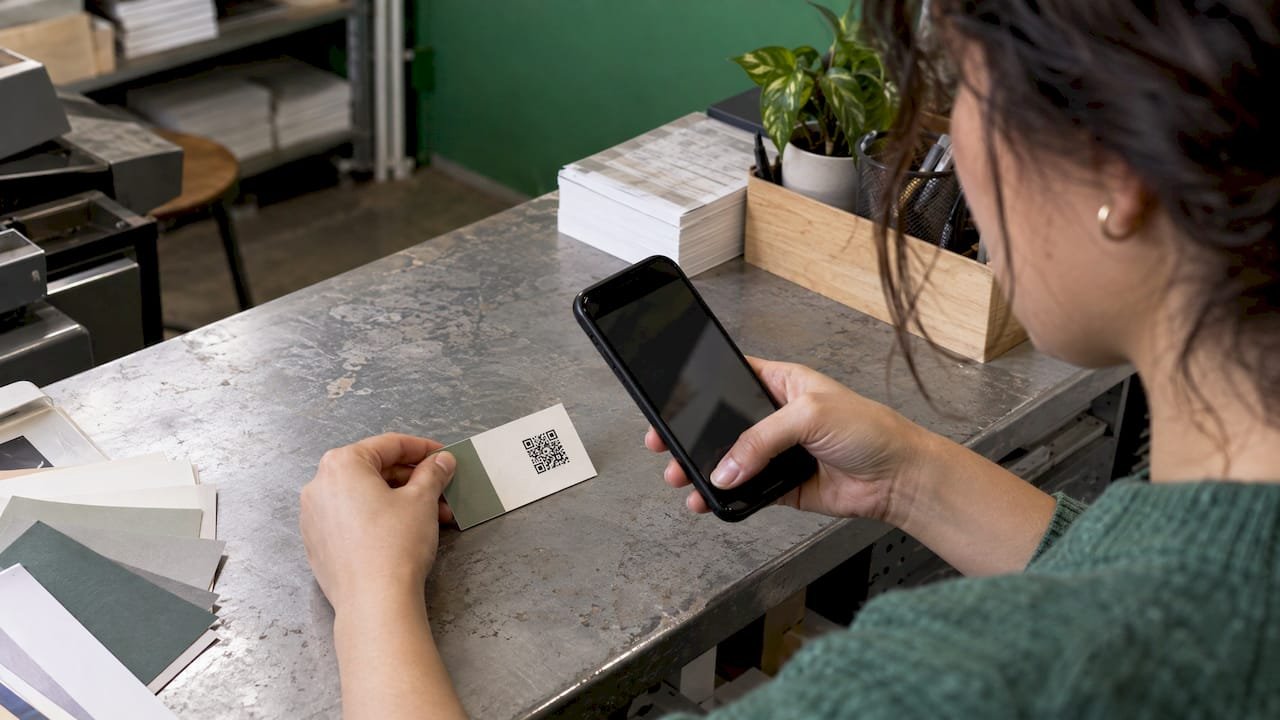
A QR code on a business card is worth adding when one scan saves the other person real effort: saving your contact, opening your portfolio, booking a call or sending you a tip. It is not worth adding when it replaces a readable phone number or email. Pick one destination, print the code at least 0.8 by 0.8 inch, put a short caption beside it, and test it on a real phone before you order.
This guide covers what to link to, how to create the code, the print specs that keep it scannable, the security habits that make people comfortable scanning it, and how creators and freelancers can use the back of the card to collect tips.
TL;DR
- Add a QR code when it removes typing or lookup, and keep your name, email and phone number printed in plain text.
- Choose one action per code: save contact, view work, book, or tip. Say which one in a short caption.
- Use a dynamic code if you want to change the destination after printing. Static codes cannot be edited.
- Print at 0.8 by 0.8 inch minimum (1 by 1 inch is safer), dark on light, with clear space around it, and scan a proof before ordering.
- Show where the code leads, so people trust it enough to scan.
Table of Contents
- Is a QR code on a business card a good idea?
- What a business card QR code can link to
- Static or dynamic: can you change the link later?
- How to add a QR code to a business card, step by step
- Size, contrast and print specs that keep it scannable
- Tell people what scanning will do
- Security: protect the people who scan your card
- For creators and freelancers: put a tip link on your card
- Add a tip link to your card with Tipper
- Mistakes to avoid
- FAQ
- Sources
Is a QR code on a business card a good idea?
Yes, with conditions. Printing guidance from Voqado says a code earns its space when it removes a real typing or lookup burden, such as opening a portfolio, a booking page or a saveable contact card. It adds little when calling or emailing is already the shorter action. Nobody needs a QR code to reach a phone number they can tap.
The U.S. government’s Digital.gov makes a similar point: QR codes connect web resources with physical places or processes, but they are not right in every context, so ask why you need one. The answer should be a sentence you can say out loud: “Scan to see my work,” “Scan to save my contact,” or “Scan to leave a tip.” If you cannot finish that sentence, leave the code off.
A quick test: imagine handing the card to someone at a crowded event. What is the one thing you want them to do on their phone in the next ten seconds? That is your destination.
What a business card QR code can link to
A QR code stores data in a two-dimensional pattern that a smartphone camera can read. According to Investopedia, a URL opens a webpage, while contact data can offer a save-contact action. That gives you a few practical options.
| Destination | Best for | What happens on scan |
|---|---|---|
| Portfolio or website | Designers, photographers, consultants | Opens your work in the browser |
| Booking page | Coaches, stylists, freelancers | Lets the person pick a time |
| vCard or digital card page | Sales, networking, job fairs | Shows your details with a save button |
| Social profile or link page | Creators, streamers | Opens the channel where your audience lives |
| Tip page | Creators, performers, service providers | Opens a payment page |
VistaPrint US lists websites, portfolios, booking pages, menus, contact details and digital business cards as suitable destinations. The Better Business Bureau adds that a code can link to your business website and help promote products, services and events.
The guidance from CueCue is to decide the single post-scan action first, whether that is saving a contact, booking a call, requesting pricing or viewing work. A card with one clear action converts better than a code that dumps people on a homepage and makes them hunt.
Sharing contact details people can save
If networking is your goal, use a vCard-style code. GetQR’s documentation describes a code that opens a mobile digital business-card page showing your name, phone, company, email and website, where the recipient taps “Add contact” to save you. QRNow recommends this type when someone needs to save a name, number, email, company and website in one scan.
In practice, the flow described by Habsy is: scan, open the card in a browser, tap Save contact, and a .vcf file lands in the phone’s address book. That is four steps for the recipient, so keep the page fast and light.
Static or dynamic: can you change the link later?
This decision matters more than the color or the corner style. The Better Business Bureau notes that the data in a dynamic code can be edited while the same code keeps working. Data in a static code cannot be edited once the code is generated and downloaded.

That has a plain consequence for print. If you order 500 cards with a static code and your portfolio moves, those cards point to a dead page. With a dynamic code you change the destination in the generator’s dashboard and the cards keep working. Many generators charge for dynamic codes, so check the plan before you print, and keep the account active for as long as the cards are in circulation.
A second route avoids the problem: point the code at a page you control, such as a short link on your own domain, and change where that page sends people whenever you like.
How to add a QR code to a business card, step by step
- Choose the destination. One action, one page, and make sure it works well on a phone. The BBB recommends optimizing the linked content for mobile devices.
- Shorten the URL. The Department of Energy recommends keeping URLs short, which also keeps the code simpler and easier to read.
- Generate the code. Use a generator that gives you a high-resolution file. Dynamic if you may change the link.
- Place it in your design. You can do this in a printing service’s editor. VistaPrint’s business card page says its editor has a QR Codes option where you enter a destination URL, position and resize the image, and scan it before ordering. Adobe Express works differently: you enter a URL in its generator, download the image, and upload it into your card project.
- Or use a template tool. In Avery’s step-by-step guide, you open QR Code and Barcodes in Design and Print Online, choose Add QR/Barcode, select QR Code and URL, enter the full address, then place and resize it.
- Add the caption. A few words beside the code, such as “Scan to save my contact.” Bitly’s guidance uses that exact style of call to action.
- Proof and test. Check the front and back, review the final PDF, and print a test sheet. Avery recommends printing at 100% scale, not fit-to-page, when printing at home, because shrinking the page shrinks the code.
Size, contrast and print specs that keep it scannable
Most failed cards fail on physical details, not on the code itself. These are the figures published by printers and generators.
| Spec | Recommendation | Source |
|---|---|---|
| Minimum size | 0.8 by 0.8 inch | VistaPrint US |
| Safer size | 1 by 1 inch, for tolerance of weaker phone cameras | Avery |
| Metric minimum | 2 cm by 2 cm for small media | Bitly |
| Clear space | At least 0.125 inch on every side | VistaPrint US |
| Colors | Dark code on a light background | VistaPrint US |
| Stock | Smooth matte or coated beats heavy texture or high gloss | VistaPrint US |
A standard U.S. card is 3.5 by 2 inches, so a 1 inch code takes up a big share of one side. The usual solution is to put the code alone on the back, with the caption and your name, and keep the front for text. For a deeper look at dimensions, bleed and file settings, this business card size and print checklist walks through what to confirm before you send a file to a printer.
Two more rules from the BBB: avoid heavy customization, because highly stylized codes can be hard for some devices to read, and always test the finished code with a smartphone. Test with more than one phone, in ordinary indoor light, from a normal reading distance. A code that scans on your monitor can still fail on a glossy proof.
Do not rely on the code alone. The Department of Energy advises placing the shortened link and destination information in text near the printed code. That text is your fallback when a camera struggles, and it tells the reader where the code leads.
Tell people what scanning will do
People are right to hesitate before scanning an unknown code. Voqado notes that people can be cautious about destinations and recommends a clear caption and a readable address so they can see where the code leads. The Energy Department likewise recommends adjacent text naming the destination.
This is a trust problem as much as a design problem. A caption, a visible web address under the code and a consistent brand on the landing page all tell the person that the card is yours and the link is safe. If you want a broader framework, this piece on how to build trust online covers the habits that make visitors comfortable acting on what they find.
A good caption is specific and short:
- “Scan to save my contact”
- “Scan to see my latest work”
- “Scan to book a 15 minute call”
- “Scan to leave a tip”
Avoid vague lines like “Scan me.” They say nothing about the result, and the Department of Energy and BBB both point toward naming the destination or benefit.
Security: protect the people who scan your card
QR codes have a reputation problem because scammers use them. The FTC has warned that QR scams can lead to spoofed sites that steal entered information or install malware, and that scammers may cover legitimate codes with their own. Its advice: inspect URLs for misspellings, avoid unexpected urgent codes, verify through known channels, keep your phone updated, and use strong passwords and multifactor authentication. A more recent FTC alert tells people to check the preview for misspellings or switched letters and to review financial accounts after a suspicious scan.
Digital.gov adds that criminals may replace codes or interfere with embedded links, and advises verifying links and avoiding downloads started through QR codes. Nielsen Norman Group lists phishing, malware delivery, unauthorized payments, tracking and fake replacement codes among the abuses.
What this means for your card:
- Use a domain you own or a well-known service, so the preview looks right when someone scans.
- Print the address in text so people can compare it with what their phone shows.
- Never ask for logins or downloads from a card scan.
- Keep sticker risk in mind if you hand out codes in public places. Check displayed codes now and then to be sure nobody has pasted over them.
If your code leads to a payment page, security matters even more. Our own guide to QR code tipping security covers threats and how to stop them.
For creators and freelancers: put a tip link on your card
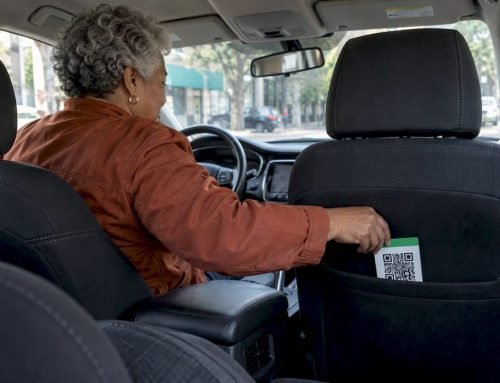
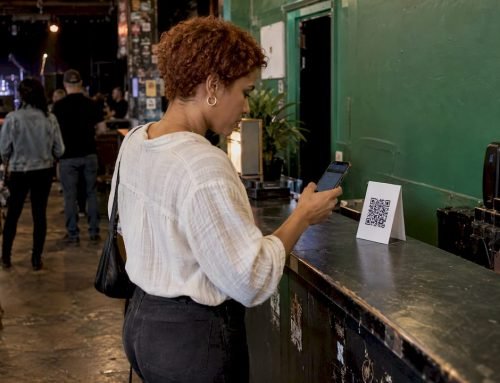
Cards are not only for job fairs. Streamers, musicians, designers, photographers and freelancers hand them out at meetups, shows and shoots, and the moment someone says “that was great” is when a tip is most likely. A QR code that opens a tip page turns that sentence into support without the person having to remember your handle.
Two things make this work. First, the page has to be quick: a person who scans in a hallway will not create an account. Second, it needs to feel personal, so they know the money is going to you. Our posts on tip link placements, event QR tipping with a $1 test and tipping for freelancers show where codes get scanned and how to check yours before a big day. If you perform in public, the street performer guide applies the same thinking to a sign or a case.
A simple layout: put your name and contact details on the front, and on the back a single code with the caption “Scan to leave a tip” or “Scan to support my work.” If you also want contact sharing, use the front for a short URL and keep the tip code as the one scannable element, so the card has one clear job on each side.

Add a tip link to your card with Tipper
Tipper gives creators, freelancers, influencers and small businesses a personalized tip link and QR code. Supporters can tip with Apple Pay, Google Pay or a card without creating an account, and you can answer with a thank you note, photo or video. It is free to create and keep a creator account, with no subscription. A small payment processing fee is added at checkout on each tip.
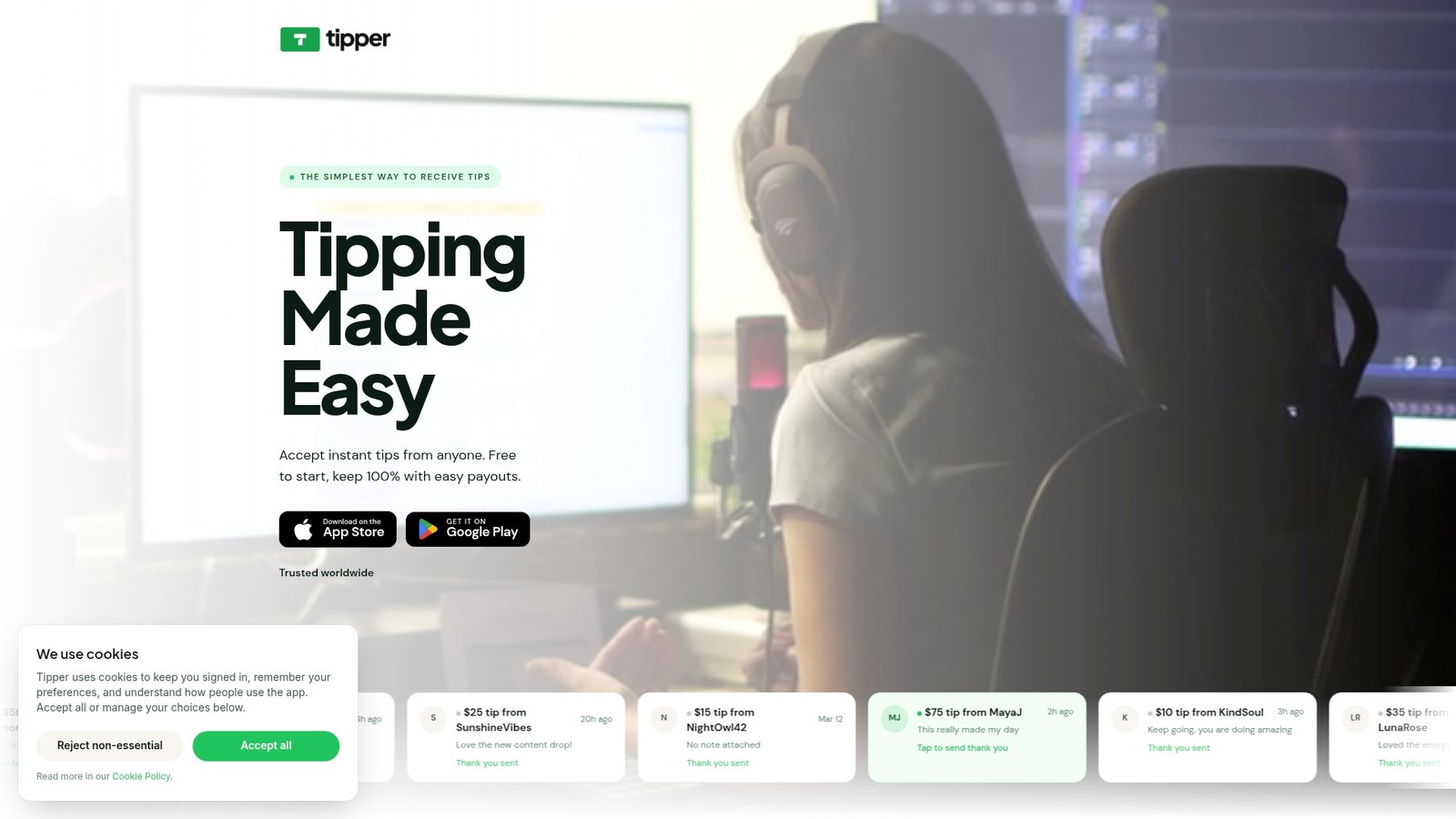
Download your code, drop it on the back of your card, add the caption, and scan it from a proof before you order. You can create your tip page at Tipper in a few minutes.
Our perspective
We built Tipper around a simple observation: the people who want to support you rarely want a signup form. A business card is a small, personal object, and a code on it should match that. One scan, one familiar payment method, and the supporter is done.
That is why we designed Tipper so supporters do not need an account, and why we aim for creators to keep 100% of their earnings. A card with a tip code should feel like a handshake that ends with a thank you, not a checkout. The thank you note, photo or video you send back is what makes the person remember your card.
Our advice is to give each card one job. If the back says “Scan to leave a tip,” make sure the page that opens is fast, branded as you and works on a phone in a loud room. Test it, print it big enough, and let the caption do the explaining.
Tipper
Mistakes to avoid
- Printing the code too small. Below 0.8 inch you are gambling on the camera.
- Low contrast or decorative colors. Dark on light is the dependable choice.
- Placing the code on texture, a fold or a glossy foil. Smooth matte or coated stock is more reliable.
- Linking to a desktop-only page. People scan on phones.
- Forgetting the fallback. Keep a readable URL, email and phone number on the card.
- Skipping the proof. Scan the PDF and a printed test sheet, then scan the finished sample from the printer once it arrives.
FAQ
Is it a good idea to put a QR code on a business card?
Yes, when it saves the other person typing or searching, for example to open your portfolio, a booking page or a saveable contact. Keep your essential contact details readable, because a code should add to the card rather than replace it.
How do digital business cards work?
A digital business card is a mobile web page with your details. Someone scans your code, the page opens in their browser, and they tap a button such as Save contact to add you to their address book. You can update the page without reprinting if the code is dynamic.
How do I create a vCard QR code?
Use a generator that offers a vCard or digital business card type, enter your name, phone, email, company and website, and download the code. Scan it with your phone to confirm the Add contact button works, then place it in your card design.
Can I change a QR code after my cards are printed?
Only if the code is dynamic. The Better Business Bureau says the data in a dynamic code can be edited while the same code keeps working, but a static code cannot be changed after it is generated and downloaded.
Sources
- When to use a QR code on print, and when to skip it | Voqado
- Introduction to QR codes | Digital.gov
- Understanding Quick Response (QR) Codes | Investopedia
- QR codes on business cards | VistaPrint US
- QR Code Business Cards | VistaPrint US
- QR Code Standards and Best Practices | Department of Energy
- BBB business tip: how QR codes can help your business
- How to Create a QR Code for a Business Card | Avery
- Free QR Code Business Cards | Adobe Express
- Digital Business Card QR Code Setup Guide | CueCue
- vCard QR code | GetQR Docs
- How to Use QR Codes on Business Cards | QRNow
- How Do Digital Business Cards Work? | Habsy
- How to Use QR Codes on Business Cards | Bitly
- Scammers hide harmful links in QR codes | FTC
- See a QR code parked somewhere? Don’t scan it yet | FTC
- 13 QR-Code Usability Guidelines | Nielsen Norman Group

Leave A Comment