


If you have Microsoft Project installed, click File > Open, browse to the file, and select it. If you don’t, upload the .mpp file to a trusted web viewer, install a free desktop viewer like ProjectLibre, or just ask whoever sent it to export a PDF or XML version instead. All three routes get you looking at the schedule in under five minutes.
TL;DR:
- Most web-based viewers support uploading files up to a certain size, but large project files may stall or reject uploads due to resource limits.
- Desktop viewers like ProjectLibre are free and work across platforms, with ProjectLibre being the best option for Mac users without Project.
- Opening in Microsoft Project guarantees full functionality, but for quick viewing, web viewers or exported PDFs are often sufficient and quicker.
- If files are corrupted or version mismatched, requesting an older format or an XML export can help avoid compatibility issues.
- For files with sensitive information, offline desktop viewers or exporting to PDF/XPS offers the safest way to review project data without risking data leaks.
Table of Contents
- Quick Options for How to Open MPP Files by Situation
- How Do You Open an MPP File in Microsoft Project?
- Can You Open MPP Files in a Web Browser?
- Which Desktop Apps Open MPP Files for Free?
- Ask the Sender: Export Options That Skip the Software Problem Entirely
- Why Won’t My MPP File Open, and How Do You Fix It?
- When a Viewer Is Enough, and When You Need the Real Thing
- Sources
- FAQ
Quick Options for How to Open MPP Files by Situation
The right method depends on what you already have installed and whether you need to edit the file or just look at it. Here’s the fast breakdown:
- You already have Microsoft Project: Use File > Open. This is the only path that guarantees full editing, macros, and resource leveling.
- You need a view-only look right now: A web-based MPP viewer works without installing anything, and most support drag-and-drop uploads.
- You’re on a Mac with no Project license: ProjectLibre runs on macOS through Java and can open most .mpp files for free.
- You get .mpp files regularly but don’t own Project: Install a dedicated desktop viewer once instead of relying on browser uploads every time.
Keep in mind that almost every non-Microsoft option is read-only or has limited editing, and some desktop viewers require a license after a trial period.
How Do You Open an MPP File in Microsoft Project?
Opening an .mpp file in the actual Microsoft Project application is the most reliable method, and it’s also the only one that preserves every feature the file was built with. The steps are the same whether you’re on Project Standard, Project Professional, or accessing files through Project Web App.
- Open Microsoft Project and go to File > Open.
- Choose This PC, then click Browse.
- Navigate to the .mpp file and select it.
- Instead of clicking Open directly, click the small arrow next to the Open button.
- Choose Open Read-Only if you just want to review the file, or Open as Copy if you plan to make changes without touching the original.
If your file was created in a different program or an older Project format, use the file name dropdown in the Open dialog to select the correct format before loading it, according to Microsoft’s official support documentation.
For anyone working through Project Web App or Project Professional connected to a server, log in, select File > Open, then browse either the server or your local cache to find the plan.
Pro Tip: If you’re only sharing a status update with people who don’t have Project, skip sending the .mpp entirely. Export to PDF or XPS instead so nobody has to hunt for software just to see a Gantt chart.
Can You Open MPP Files in a Web Browser?
Yes, and this is often the fastest option when you don’t have Project installed and just need a quick look. Web-based MPP viewers let you upload the file directly in your browser without downloading anything.
The typical flow looks like this:
- Go to the viewer’s website.
- Click Import or Open File.
- Upload your .mpp file from your computer.
- Wait a few seconds while it renders the Gantt chart, task list, and dependencies.
Some viewers let you view a project completely free with no account, while others require a sign-up or a trial period if you want to save your work or revisit the file later. Behavior varies a lot from one tool to the next, so check what happens to your data before you commit to uploading anything sensitive.
That last point matters more than most people realize. Project files frequently contain budget figures, client names, internal deadlines, and staffing details that have no business sitting on a server you’ve never heard of. If a project touches sensitive financial or personnel information, an offline desktop viewer or a direct request for a PDF export is the safer move, a point Microsoft itself makes when discussing alternatives to installing the full application.
There’s also a practical size limit to watch for. Large, resource-heavy project files with hundreds of tasks and dependencies can be slow to upload or may get rejected outright by browser-based tools that cap file sizes for free users. If a web viewer stalls or throws an error on upload, that’s often the reason, not a corrupted file.
When in doubt about a source you don’t recognize, the safest question to ask is simple: “Can you just send me a PDF?”
Which Desktop Apps Open MPP Files for Free?
Several third-party tools exist specifically because Microsoft Project itself has no free standalone viewer. The four names that come up constantly across support forums and product comparisons are Project Plan 365 (also marketed as Project Viewer 365), ProjectLibre, Seavus Project Viewer, and MOOS Project Viewer.
The install-and-open flow is nearly identical across all of them:
- Download the installer from the developer’s site.
- Run the installer and launch the application.
- Select File > Open.
- Browse to your .mpp file and open it.
ProjectLibre stands out because it’s open source, free, and runs on macOS through Java, which makes it the go-to pick for Mac users who don’t want to mess with a virtual machine. Seavus Project Viewer and Project Plan 365 both offer free trials but typically shift to paid licensing for continued use, and some editions lean read-only rather than full editing, according to a product comparison from Seavus. MOOS Project Viewer follows a similar pattern with a free tier for basic viewing.
Pro Tip: If a project file contains anything sensitive, choose a desktop viewer over a browser upload. Nothing leaves your machine, and you’re not trusting an unknown server with your data.

Ask the Sender: Export Options That Skip the Software Problem Entirely
Sometimes the fastest fix isn’t opening the .mpp yourself at all. It’s asking whoever built the file to send it in a format you can already open.
- PDF or XPS export: Gives you a clean, static view of the schedule and Gantt chart, perfect for meetings where nobody needs to edit anything.
- Copy Picture: Lets the sender grab a snapshot image of the project view, ideal for dropping into an email or slide deck.
- MSPDI (XML) export: A more portable file format that many viewers and older Project versions handle better than a native .mpp.
- Save As an older Project version: Fixes compatibility issues when the sender’s Project version is newer than whatever you or your viewer supports.
For a status check before a meeting starts, a screenshot or exported PDF beats installing anything. It takes the sender thirty seconds and saves you the entire troubleshooting process.
Why Won’t My MPP File Open, and How Do You Fix It?
Most opening failures come down to one of three causes: version mismatch, file corruption, or a simple mistake like a wrong extension. Work through them in this order:
- Check the basics first. Confirm the file actually ends in .mpp, that it’s not a renamed .mpt template, and that it isn’t sitting above a web viewer’s upload size limit.
- Rule out a version conflict. A newer .mpp saved in a recent Project version may not open in an older copy of Project or in some viewers. Ask the sender to use Save As to export an older format, or request an MSPDI/XML export instead, since XML travels across versions more reliably than the native format.
- Suspect corruption. Try a different viewer entirely. If nothing opens it, a Microsoft Project trial can sometimes repair or export a partially damaged file that third-party viewers simply reject.
- Check for a password. Project files can be protected, and a locked file will fail silently in some viewers instead of showing a clear error message.
If the file references external resources or links to a Project Server, a viewer might show blank placeholders instead of real data. In that case, ask the file’s owner for a published PDF or XPS snapshot rather than the raw .mpp, which sidesteps the server dependency entirely.
When a Viewer Is Enough, and When You Need the Real Thing
Where they fall apart is anything involving macros, custom fields, or resource leveling. Those features live inside Microsoft Project itself and don’t translate to third-party tools.
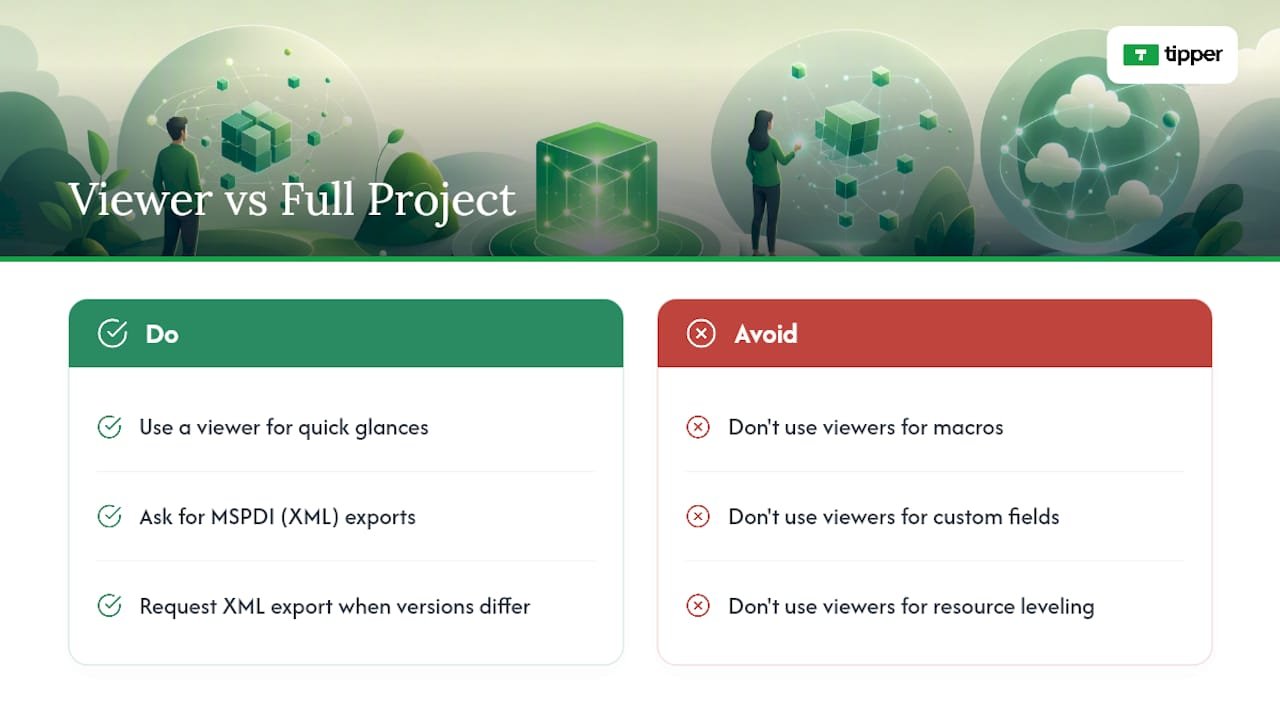
If your job involves regularly editing project files rather than just glancing at them, build a habit of asking for MSPDI (XML) exports instead of raw .mpp files whenever version mismatches are a recurring problem. It’s a small workflow change that saves a surprising amount of back-and-forth over “which version of Project do you have.”
Sources
FAQ
Can I Open an MPP File in Excel?
Not directly. Excel can’t natively read the .mpp format, though you can sometimes import specific task data if the sender first exports the project to a CSV or Excel-compatible file from Project.
Can I Open MPP Files Online Without Installing Anything?
Yes. Web-based MPP viewers let you upload the file in a browser and see the Gantt chart and task list without installing software, though most offer read-only access rather than full editing.
How Can I Open an MPP File Without Microsoft Project?
Use a free desktop viewer like ProjectLibre, a web-based viewer, or ask the sender to export the file to PDF, XPS, or XML so you can view it in a program you already have.
Which Apps Open MPP Files Besides Microsoft Project?
Project Plan 365 (also called Project Viewer 365), ProjectLibre, Seavus Project Viewer, and MOOS Project Viewer all open .mpp files, with ProjectLibre being the main free, open-source, cross-platform option.




Leave A Comment