

You can’t receive Google Pay tips straight from a fan’s wallet, because Google Pay is a payment method and not a place where you get paid. To accept tips with Google Pay, you need a tip page or link that offers Google Pay at checkout. Tipper gives creators exactly that: a personalized link or QR code where supporters tip with Google Pay, Apple Pay or a card, without creating an account, and creators keep 100% of their earnings.
This guide covers how the pieces fit, what your supporters actually do, where wallet buttons break (Instagram and TikTok are the usual culprits), and what to check before you put a link in your bio.
TL;DR
- Google Pay and Apple Pay are ways to pay, not ways to get paid. You need a tip link that supports them.
- With a Tipper link, a supporter can tip with Google Pay, Apple Pay or a card, and no account is required on their side.
- Wallet buttons only show on compatible browsers and devices, and often disappear inside Instagram and TikTok in-app browsers.
- Put the link where fans already are: stream panels, video descriptions, link-in-bio pages and a QR code.
- Tipper is free to create and keep, with no subscription. It charges a platform fee plus a small payment processing fee on each tip.
Table of Contents
- Can you accept Google Pay tips directly?
- What a supporter does to send a Google Pay tip
- How to set up a tip link that takes Google Pay
- Where to put your tip link
- Why the Google Pay button might not show up
- What it costs: fees and payouts
- How Google Pay tips compare with other ways to get tipped
- Make the tip feel personal
- Our view: wallet tipping should need zero steps from the fan
- Ready to take Google Pay tips?
- FAQ
- Sources
Can you accept Google Pay tips directly?
Not in the way most creators first imagine. Google Pay stores a person’s cards on their phone or in their Google account and passes them to a checkout when they pay. It has no public page where fans can look you up and send money. Someone has to run the checkout that the wallet plugs into, and that is a payment platform.
That is why searches like “accept Google Pay tips” end at tip links. A tip link is a short URL that opens a page where the supporter picks an amount and pays. The page connects to the card network, shows the wallet button, and moves the money to your bank. Developers who want to understand the plumbing can read about payment API types for platforms, but a creator doesn’t need to build any of it.
The same logic applies to Apple Pay. Both wallets are just a faster way for a fan to confirm a card payment with a fingerprint, face scan or PIN. If you want the head-to-head view, we compare them in Google Pay vs Apple Pay in the US.
What a supporter does to send a Google Pay tip
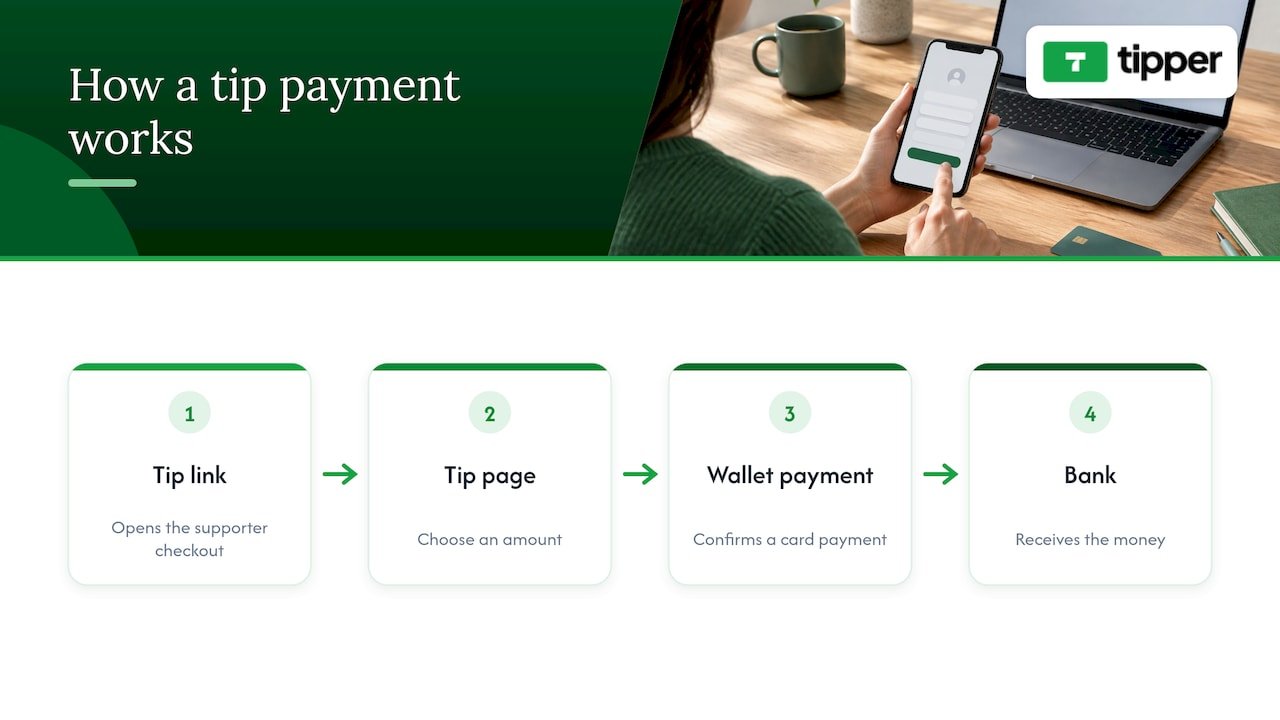
The supporter flow is the part that decides whether people actually tip, so it should be short. With Tipper it goes like this:
- The fan taps your link, scans your QR code or clicks the link in your video description.
- They land on your tip page and choose an amount.
- They tap the Google Pay button (or Apple Pay on an iPhone or Mac), confirm on their device, and the tip is sent.
- They can leave a thank-you note, and you can answer with a text, photo or video message.
There is no sign-up, no password and no app download for the supporter. That matters because every extra step before payment is a place where a person decides they’ll do it later and never does. A fan who is watching a live stream on their phone and feels like tipping has about ten seconds of impulse to work with.
If you prefer a card, that works too. Wallets are the fastest path because the card is already saved, so there is nothing to type.
How to set up a tip link that takes Google Pay
The setup is short. Here is the routine, with what it takes at each step.
1. Create your creator account
You open a Tipper account as the person receiving tips. It is free to create and maintain, and there is no subscription. Your supporters never need an account. Pick a handle that matches your channel name, so your link is easy to say out loud on a stream.
2. Customize your tip page
Tipper pages are customizable, so add your name, a photo and a short line telling people what a tip supports: new gear, the next video, a cleaner studio mic. A specific reason converts better than a generic “support me” line, because the fan can picture where the money goes.
3. Connect your payout
Tipper pays out directly, so connect your payout details before you share the link. Finish any identity or tax information that is asked for at this stage. Delays in payouts commonly come from unfinished tax and bank details, as one creator guide on linking Stripe to X points out for that setup.
4. Check the wallet buttons yourself
Open your own link on an iPhone, an Android phone and a laptop. You should see Apple Pay where Apple’s rules allow it and Google Pay in Chrome with a saved card. If a button is missing, the next section explains why.
5. Share the link and a QR code
Put it everywhere a fan might feel appreciation. The next section lists the best places for each platform.
Where to put your tip link
Wallet tipping works best when the link is one tap away from the moment of gratitude.
| Where | What to do | Tip |
|---|---|---|
| Twitch | Add the link to a panel under your stream and a chat command | Pin it during emotional or high-energy moments, not constantly |
| Kick | Put it in your channel description and chat command | Mention it by name once per stream |
| YouTube | Add it to the top of the video description and the channel About page | Put it in the first two lines so it shows before “show more” |
| TikTok and Instagram | Link in bio, plus a QR code on screen in videos | See the in-app browser warning below |
| Link-in-bio pages | Add it as a button next to your other links | Name it “Send a tip” rather than a brand name |
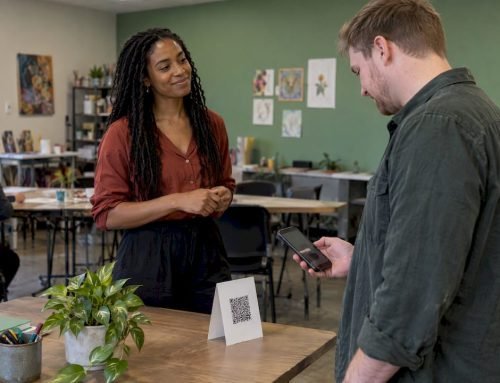
| In person | Print the QR code on a card, sticker or sign | Useful for events, markets and meetups |
If you already use a link hub such as Linktree, Throne or Buy Me a Coffee, you don’t need to abandon it. Add your Tipper link as one more button, and fans who want to tip with a wallet get a page built for it. We explain why a dedicated link is worth having in why creators need tipping links.
Why the Google Pay button might not show up
This is the most common support question about wallet tipping, and it is almost never your fault. Wallet buttons appear only when the fan’s browser and device allow it.
Browser and device requirements. According to Maropost’s guide to Stripe wallet payments, Apple Pay needs Safari on macOS Sierra or later, or mobile Safari on iOS 10.1 or later. Google Pay needs Chrome 61 or later and a saved card. On Android, the card needs to be activated or saved in Google Pay.
In-app browsers. When a fan taps a link inside Instagram or TikTok, the app often opens the page in its own built-in browser instead of Safari or Chrome. NullMark’s 2026 mobile payment guide reports that Apple Pay doesn’t render in the in-app browsers used by Instagram and TikTok on iOS, and that Google Pay fails in roughly 30 to 40% of Android in-app browser cases. Its fix is to move the visitor into Safari or Chrome.
What that means in practice:
- In your TikTok or Instagram bio, add a short line such as “Tap the menu, then Open in browser” if your fans report a missing button.
- Show the QR code on screen too. Scanning a code with the phone camera opens the link in the regular browser, which sidesteps the problem.
- Keep a card option on the page, so a fan without a wallet button can still tip.
- Test your link from inside your own Instagram and TikTok apps, not only from Chrome on your laptop.
A fan who has no card saved in their wallet won’t see a button either. That’s the one case no creator can fix, and the card form covers it.
What it costs: fees and payouts
Wallet tips are card payments underneath, so card processing costs apply. Tipper has no subscription: it is free to create and maintain an account, and each tip carries a platform fee plus a small fee for payment processing, which is added at checkout. Tipper does not publish a price for these fees on its site, so check the checkout your supporters see for the exact amount.
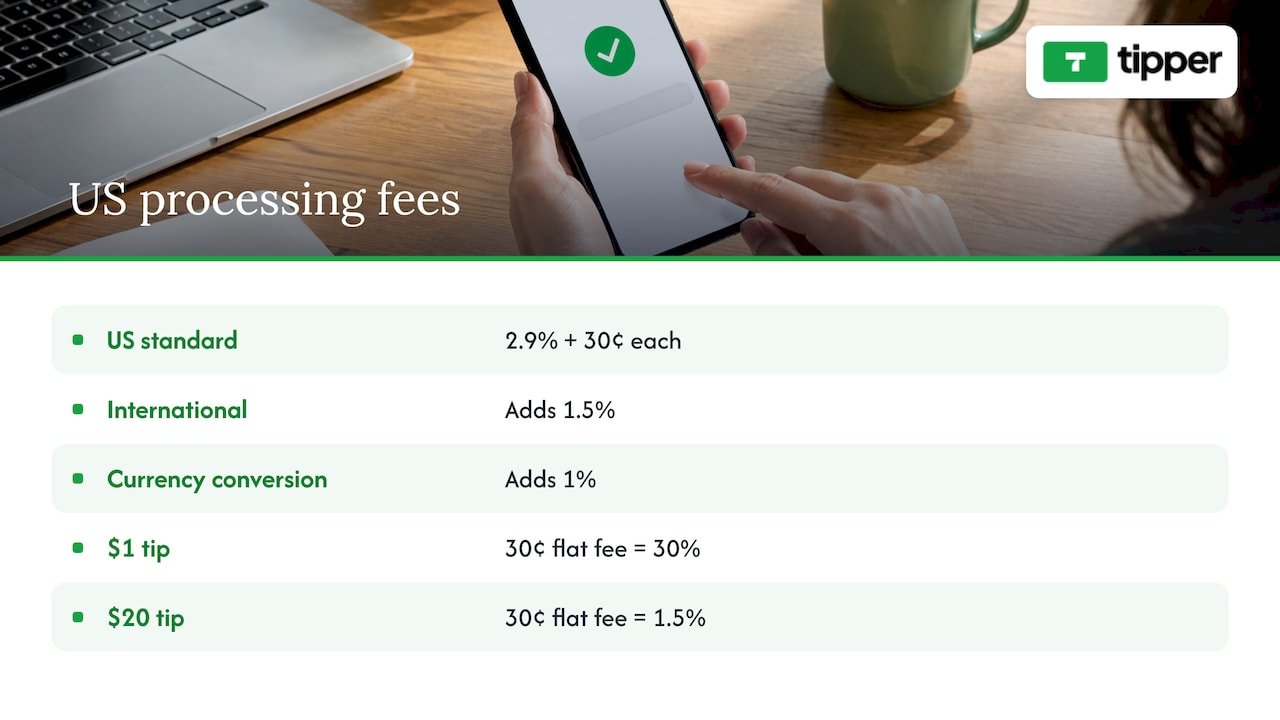
For context, Stripe’s 2026 US pricing guide puts standard digital wallet payments, including Apple Pay and Google Pay, at 2.9% plus 30 cents each, with no extra charge for switching wallets on. The same guide says international cards add 1.5% and currency conversion adds 1%. That fixed 30 cents is why very small tips cost proportionally more: on a $1 tip, the flat part alone is 30% of the amount, while on a $20 tip it is 1.5%.
Payout timing depends on the payment provider and your location. Big Cartel’s help page on Stripe says standard payouts to a US bank account typically take 2 to 7 business days, depending on settings and location. Expect timing of that kind on card-based payouts, and check your Tipper payout settings for your own schedule.
Disputes are rare for tips, but they exist: a fan can ask their bank to reverse a card payment. The Stripe guide notes a dispute fee of $15 on that processor, plus another $15 if the merchant responds. A clear tip page with your name and a thank-you message helps the fan recognize the charge on their statement.
How Google Pay tips compare with other ways to get tipped
Creators usually ask what they gain over the alternatives. Here is the practical difference.
| Method | Fan needs an account? | Wallet checkout | Typical friction |
|---|---|---|---|
| Tipper link or QR | No | Apple Pay, Google Pay, card | One page, one tap |
| Platform donation pages | Often | Varies | Sign-up or login prompts |
| Peer-to-peer payment apps | Yes, and the fan needs the app | Not applicable | Fan must have the app and find your handle |
| Subscription memberships | Yes | Varies | A monthly commitment, not a spontaneous thank-you |
The differences that matter to creators are that fans can tip on impulse and that you keep the full amount of the tip: Tipper’s model is that creators keep 100% of their earnings. If you want the full breakdown across platforms, our digital tipping platforms comparison goes through them, and our guide to Apple Pay creator tips covers the iPhone side in more depth.
Make the tip feel personal
A wallet makes the payment easy. The thank-you is what brings the fan back. Tipper lets you reply with a text note, a photo or a short video. A fifteen-second video that says the supporter’s first name does more for loyalty than a generic automated message.
Three habits that work:
- Reply within a day while the moment is fresh.
- Mention what the tip made possible, for example “your tip went toward the new lighting.”
- Keep amounts private unless the supporter wants a shout-out. Tipper’s model emphasizes user privacy.
Our view: wallet tipping should need zero steps from the fan
Most tipping tools were built for the creator’s dashboard, not for the person holding the phone. We built Tipper the other way around. A fan who wants to say thank you should be able to do it with the wallet already on their phone, without making an account, handing over an email or installing anything.
That is why a Tipper link works with Apple Pay, Google Pay and cards, and why the supporter never signs up. It is also why creators keep 100% of their earnings: a tip is a thank-you, and it should arrive as one.
The personal touch matters as much as the payment. A thank-you note, photo or video turns a one-off payment into a relationship. Wallet tipping makes the first part effortless, and the creator makes the second part count.
Tipper
Ready to take Google Pay tips?
If you want a link that shows Google Pay and Apple Pay to your supporters, with no account on their side and no subscription on yours, create your page on Tipper. It is free to create and maintain, and each tip carries a platform fee plus a small payment processing fee.
If you run a small business or take tips in person, our guide to Apple Pay and Google Pay tips for small businesses shows how the same link and QR code work at a counter or market stall.
FAQ
Do my fans need a Google Pay account to tip me?
They need Google Pay set up on their device with a saved card, which most Android users already have. They do not need an account with Tipper. If they have no wallet, they can pay with a card on the same page.
Does Apple Pay work the same way as Google Pay for tips?
Yes. Both appear as a button at checkout and let the supporter confirm with their device. Apple Pay shows in Safari on Apple devices, and Google Pay shows in Chrome with a saved card, so your link should offer both.
Why don’t I see the wallet button when I open my link from Instagram?
Instagram and TikTok often open links in a built-in browser that doesn’t support wallet buttons. Open the page in Safari or Chrome instead, or share a QR code that fans scan with their camera app.
Do I keep the whole tip?
Tipper’s model is that creators keep 100% of their earnings. Each tip carries a platform fee and a small payment processing fee that are added at checkout, and Tipper does not publish those amounts, so the checkout page shows the exact total.
Sources
- Stripe fees 2026: every rate and what a $100 sale nets you
- Stripe help article, Big Cartel
- Stripe Credit Card, Apple Pay, and Google Pay Payment Method, Maropost
- Mobile Payment Optimization for Content Creators, NullMark
- How To Link Your Stripe Account To X
- Payment API Types for Platforms: 2026 Developer Guide
Leave A Comment