
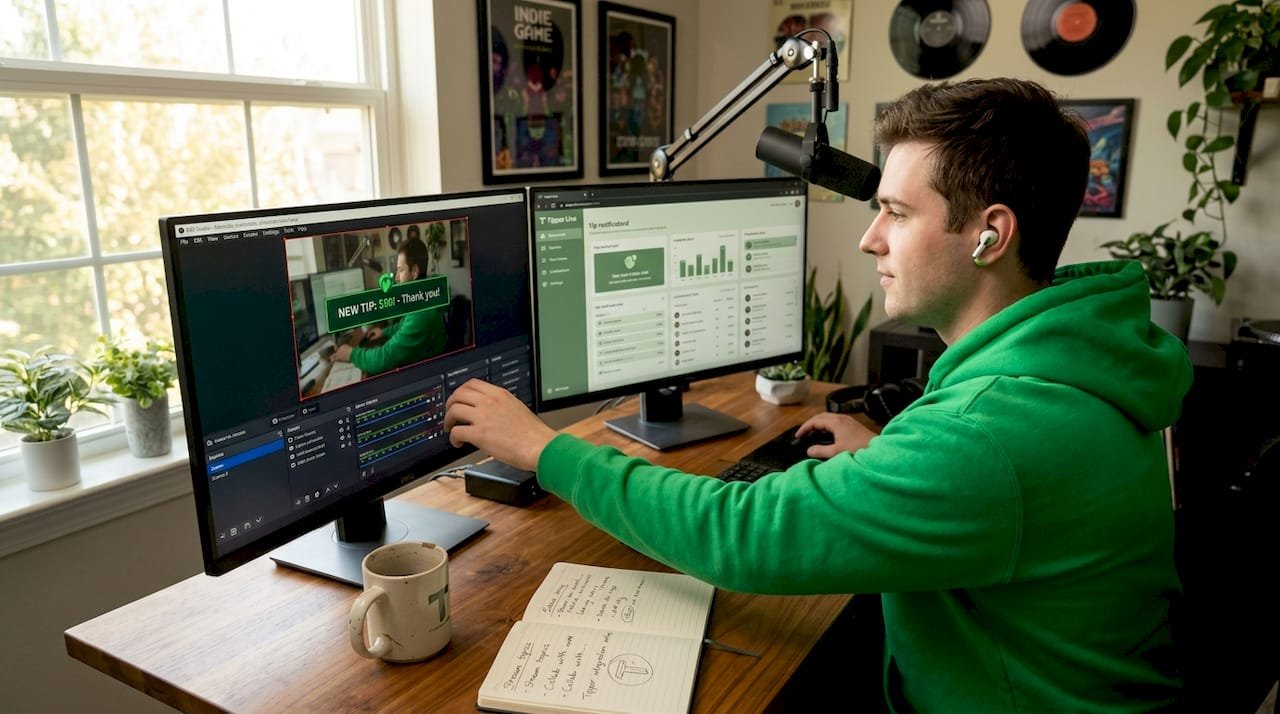
You’re mid-stream, a viewer sends a tip, and you have no idea it happened. No sound, no pop-up, no moment to say thank you. That missed connection costs you more than money. It costs you the kind of real-time audience engagement that keeps people coming back. Getting your instant tip notification setup right means every tip lands with impact, on screen and in the moment. This guide walks you through everything: what you need, how to configure it, how to troubleshoot it, and how to verify it actually works before you go live.
Table of Contents
- Key takeaways
- Instant tip notification setup: what you need first
- Step-by-step guide to configuring tip alerts in OBS
- Troubleshooting when notifications do not show up
- How to verify and optimize your setup for real engagement
- Alternative notification methods beyond OBS
- My honest take on tip notifications
- Make tip collection even easier with Tipper
- FAQ
Key takeaways
| Point | Details |
|---|---|
| Instant tip notifications matter | Missing a tip in real time breaks the creator-audience connection that drives loyalty and repeat support. |
| OBS Browser Source is the standard | Paste your alert widget URL into OBS as a Browser Source to display tip alerts instantly during streams. |
| Permissions block most failures | Device and app notification permissions are the most common reason alerts fail to appear. |
| Set alert delay to zero | Configure your alert box delay to 0 seconds so notifications appear the moment a tip is received. |
| Test before going live | Use your alert service’s test button to confirm visual and audio alerts work before your broadcast starts. |
Instant tip notification setup: what you need first
Before you touch a single setting, you need the right tools in place. Skipping this step is why most creators end up troubleshooting for an hour instead of streaming.
Here is what you need to have ready:
- Streaming software: OBS Studio is the most widely used option and the one this guide focuses on. It supports Browser Sources, which is how tip alerts get displayed on screen.
- A tip alert service account: Services like Tipi.ee or StreamElements generate the widget URLs you will paste into OBS. Create a free account on whichever platform connects to your tip payment method.
- Your tip payment link: You need a way for viewers to actually send tips. Platforms like Tipper let anyone send a tip through a personalized link without creating an account, using Apple Pay or Google Pay.
- Device notification permissions: If you want alerts on your phone or desktop outside of OBS, your operating system needs to allow the app or browser to send notifications.
- Optional: Text-to-speech (TTS) setup: TTS reads tip messages aloud during your stream. It adds an audio layer to your visual alerts and keeps you informed even when you are not watching the screen.
Here is a quick reference for what each tool does in the overall system:
| Tool | Role in the setup |
|---|---|
| OBS Studio | Displays the alert overlay during your stream |
| Tip alert service (e.g., Tipi.ee) | Generates the widget URL and processes alert events |
| Tip payment platform (e.g., Tipper) | Receives tips from viewers and triggers the alert event |
| Browser Source (OBS feature) | Renders the alert widget URL inside OBS |
| Device OS settings | Controls whether system-level notifications reach you |
The architecture here is straightforward. OBS itself does not process tips. It only displays what an external alert service pushes to it. The tip event triggers the alert service, which pushes the notification to your Browser Source, which OBS renders on screen. Understanding that flow makes troubleshooting much faster later.
Step-by-step guide to configuring tip alerts in OBS
This is the core of your tip notification configuration. Follow these steps in order and you will have alerts running in under 15 minutes.
-
Create your alert service account. Go to Tipi.ee or StreamElements and sign up. Connect it to your tip payment platform so the service knows when a tip has been received.
-
Generate your alert widget URL. Inside your alert service dashboard, navigate to the alerts or overlays section. You will find a unique URL for your account. For Tipi.ee, your widget URL follows the format "https://tipi.ee/en/YOUR_HANDLE/tts-radio`. Copy that URL.
-
Open OBS and add a Browser Source. In your scene, click the “+” button under Sources. Select “Browser.” Give it a name like “Tip Alerts” and click OK.
-
Paste the widget URL. In the Browser Source settings, paste your alert widget URL into the URL field. Set the width to 1920 and the height to 1080 to match your stream canvas. Check “Shutdown source when not visible” to keep CPU usage low without losing alert functionality.
-
Enable refresh on scene activation. In the same Browser Source settings, check “Refresh browser when scene becomes active.” This keeps the alert widget live and ready every time you switch to that scene.
-
Set your alert delay to zero. Inside your alert service dashboard, find the Alert Box Delay setting. Set it to 0 seconds so notifications fire the instant a tip comes in, with no artificial lag.
-
Enable TTS if you want audio alerts. In your alert service settings, turn on text-to-speech. Tipi.ee bundles tip alerts and TTS into a single Browser Source URL, so you get both on-screen visuals and spoken messages without adding a second source.
-
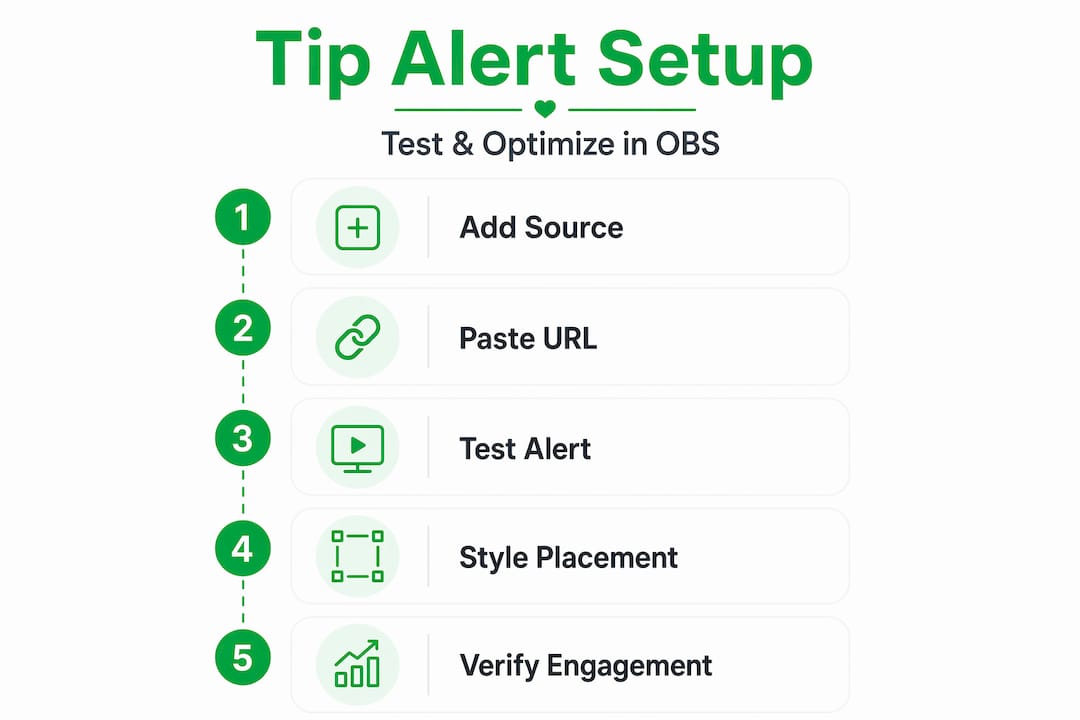
Send a test alert. Most alert services have a “Test Alert” button in the dashboard. Click it and watch your OBS preview to confirm the alert appears and plays correctly.
Pro Tip: Position your Browser Source at the top of your OBS source stack so it renders above your webcam and game capture. If it is buried under other sources, the alert will play but you will never see it.
Troubleshooting when notifications do not show up
Even a clean setup can run into problems. Most issues come down to permissions or a misconfigured setting, not a broken system.
Work through this checklist before assuming something is wrong with your alert service:
- Check OS-level notification permissions. Go to your system settings and confirm the browser or app running your alert service has permission to send notifications. Checking notification permissions is the first fix for alerts that simply do not appear.
- Turn off Focus or Do Not Disturb modes. On both Windows and macOS, system-level silencing overrides all app notifications. If Do Not Disturb is on, your alerts will fire silently or not at all.
- Refresh your OBS Browser Source. Right-click the Browser Source in OBS and select “Refresh.” This forces the widget to reload and re-establish its connection to the alert service.
- Verify your widget URL is still valid. Alert service URLs can expire or change if you reset your account. Go back to your dashboard, copy the current URL, and re-paste it into OBS.
- Confirm the alert delay is set to zero. A delay setting above zero seconds will make alerts feel broken because they appear long after the tip was received.
- Check browser notification permissions. If your alerts run through a browser tab rather than OBS, open your browser settings and confirm the alert service domain has notification permission enabled.
“Reliable instant tip notifications depend heavily on proper device permissions and app configurations, not just the overlay setup.” — Setting Up Instant Alerts and Notification Preferences
If you have checked everything above and alerts still do not appear, log out of your alert service, clear your browser cache, and log back in. A stale session token is a surprisingly common culprit.
How to verify and optimize your setup for real engagement
Getting alerts to show up is step one. Getting them to actually improve your stream is step two.
Start by running a full test before any live broadcast. Most services offer test buttons that simulate a real tip event. Use it. Watch the alert appear in your OBS preview, listen for the TTS voice if you enabled it, and check that the animation completes without cutting off.

Pro Tip: Ask a friend to send a real test tip through your payment link before your first live stream. A real transaction confirms the entire pipeline works end to end, from payment to alert, not just the OBS display layer.
Once alerts are confirmed working, focus on placement and style. Alerts that cover your face or block key game content will annoy viewers. Position them in a corner or along the bottom third of your screen. Keep the animation duration under four seconds so it does not drag.
Here is a quick comparison of alert style choices and their trade-offs:
| Setting | Minimal style | Full TTS style |
|---|---|---|
| On-screen duration | 2-3 seconds | 4-8 seconds (voice reads message) |
| Viewer distraction level | Low | Medium |
| Creator awareness | Visual only | Visual and audio |
| Best for | Fast-paced game streams | Talk shows, podcasts, IRL streams |
| CPU impact | Very low | Low to moderate |
On the performance side, enabling “Shutdown source when not visible” in your Browser Source settings reduces CPU load without breaking alert delivery. The source reactivates when your alert scene is active, so you do not lose anything.
Alternative notification methods beyond OBS
OBS with a Browser Source is the most flexible approach, but it is not the only one. Knowing your options helps you pick the right tool for your setup.
- Built-in platform alerts: Twitch and YouTube both offer native alert systems that trigger when a viewer sends bits or Super Chats. These are easy to enable but offer limited customization and only work within those platforms.
- Mobile and desktop apps: Some alert services offer companion apps that push notifications directly to your phone or desktop. This is useful for creators who are not always watching their stream monitor.
- Chatbot integrations: Bots like Nightbot or Streamlabs Chatbot can be configured to post a chat message when a tip is received. This is not a visual overlay alert, but it gives you a text-based confirmation in real time.
- Custom webhook pipelines: Advanced creators can build webhook-based systems where a tip event from their payment platform triggers a custom notification to any endpoint they choose. This requires technical setup but offers the most control.
Each approach has a different trade-off between ease and flexibility. Built-in platform alerts are the fastest to enable but the least customizable. Webhook pipelines take the most work but give you complete control over how and where notifications appear. For most creators, the OBS Browser Source method sits in the sweet spot: quick tip alert setup with enough customization to match your brand.
My honest take on tip notifications
I have helped a lot of creators get their alert setups running, and the pattern I keep seeing is the same. People spend hours customizing alert animations and TTS voices before they have confirmed the basic pipeline actually works. The animation does not matter if the alert never fires.
What I have learned is that the technical side of setting up tip alerts is genuinely simple once you understand that OBS is just a display. The real work is in the permissions, the delay settings, and the end-to-end test. I have seen creators go live with a broken setup because they tested the alert widget in their dashboard but never checked if it appeared in OBS. Those are two different things.
The other thing I would push back on is the idea that more features equal a better experience. A clean, fast, two-second alert with a simple sound does more for audience engagement than a 10-second animated sequence with a TTS voice reading a 200-character message. Viewers notice when you acknowledge a tip quickly. They do not care how fancy the animation is.
My advice: get the basics working first, test with a real transaction, and then add polish. The creators who build the strongest tip culture are the ones who respond fast and personally, not the ones with the most elaborate overlays.
— Steve
Make tip collection even easier with Tipper
Once your alerts are configured and tested, the next question is whether your tip collection method is working as hard as your notification setup.
Tipper gives creators a personalized tip link that anyone can use without creating an account. Viewers pay with Apple Pay or Google Pay in seconds, and creators keep 100% of what they earn. There are no platform cuts and no friction for the person sending the tip. Tipper also supports thank-you messages through notes or videos, which pairs naturally with your instant alert setup. When a tip comes in, your alert fires, you acknowledge it live, and the tipper gets a personal response. That full loop is what turns one-time supporters into regulars. Start collecting tips today and see how fast the connection between you and your audience grows.
FAQ
What is the easiest way to set up tip alerts in OBS?
Add a Browser Source in OBS and paste the widget URL from your alert service. Services like Tipi.ee provide a single URL that handles both visual alerts and TTS with no additional configuration.
Why are my tip notifications not showing up?
The most common causes are missing device notification permissions, an active Do Not Disturb mode, or a stale Browser Source connection. Check permissions first, then refresh your OBS Browser Source.
How do I make tip alerts appear instantly with no delay?
Set the Alert Box Delay to 0 seconds inside your alert service dashboard. Any value above zero adds artificial lag between the tip event and the on-screen notification.
Do I need to test my setup before going live?
Yes. Use your alert service’s test button to trigger a simulated alert and confirm it appears in OBS. Then send a real tip through your payment link to verify the full pipeline works end to end.
Can I get tip notifications on my phone, not just in OBS?
Yes. Some alert services offer mobile companion apps that push notifications to your phone. You can also configure chatbot integrations that post a message when a tip is received, giving you a text-based alert anywhere you have chat access.



Leave A Comment