

A simple way to accept tips during a livestream is a personalized no-account tip link, and we recommend Tipper for it. Your viewers can pay with Apple Pay or Google Pay. Below we cover setup, policy cautions, payouts, and how to choose.
TL;DR:
- Test the payment and alert separately in private mode and again with your live scene; verify the provider’s transaction record because an animation proves nothing.
- When multistreaming, use separate alert widgets or scenes for each destination, check every platform’s terms, and keep one service’s chat and sounds off another’s stream.
- For charitable campaigns, use an eligible platform fundraiser for a registered nonprofit; personal tip links support the creator and should not be presented as donations.
- Track gross earnings, fees, and deposits weekly, save payout records, and set aside tax money; tips, subscriptions, sponsorships, and sales count as creator income.
Table of Contents
- Which ways of accepting tips actually work for streamers?
- How do you set up a tip link and alerts before your next stream?
- What should you check before multistreaming with tips?
- When do tips reach your bank, and what do you owe in taxes?
- How do you pick the right tipping setup in a few minutes?
- What do platform docs and multistream guidance say about tipping?
- Why we built a no-account tip link for creators
- Start tipping in minutes with a Tipper tip link
- FAQ
- Sources
Which ways of accepting tips actually work for streamers?
Most of the top tipping apps and services fall into three categories, and each one changes what your viewer has to do before they can support you.
- Creator tip pages. You get a personal link or QR code that viewers open on a phone or desktop. Some versions let a supporter pay without creating an account, offer one-tap wallets, and let you send back a thank-you note or video. Viewer friction is lowest here, and you control the page’s look and wording.
- Native fan-funding features. These are tools built into the streaming site, such as Super Chat on YouTube or Bits on Twitch. Viewers already have an account and a payment method on file, so the click path is short, but you are tied to that one platform’s rules, revenue split, and display style. The tip shows up in the platform’s own chat or highlight area.
- Embedded payment flows. Some streamers wire a payment processor’s checkout into a panel or website. This gives you control over the checkout, but you take on more setup, and receipts, refunds, and alert connections are yours to manage.
When you compare these tipping platforms, ask what each one does to viewer friction, whether a receipt reaches the supporter, and how visible the tip is to the rest of the chat. A tip page works well because it travels with you. The same link can sit in a panel, a chat command, a pinned message, and a video description. For a deeper look at the different types of real-time supporter contribution tools, we have a separate breakdown.
How do you set up a tip link and alerts before your next stream?
You can get started with these steps. The goal is simple: a link viewers can pay through, an alert that appears on stream, and proof that both work before you go live. The payment and the on-screen alert are two separate steps, and both need testing before you go live.
- Create your tip page. Sign up, claim your personalized link, and choose from the supported payment methods.
- Write your thank-you. Choose how you respond to supporters. A short note works, and a photo or video message makes a bigger impression. Keep the wording friendly and specific to your channel.
- Copy your alert widget URL. Add an alert to your stream using a method that works for your setup. Treat it like a password and never show it on screen.
- Add it to OBS as a Browser source. In OBS, add a new Browser source to your scene, paste the widget URL, and size it to match your canvas. Choose dimensions that fit your stream canvas, so the alert can animate anywhere you position it.
- Layer it correctly. Drag the alert source above your camera and game capture in the source list so it is never hidden behind them. Place it where it won’t obscure your face cam or chat box.
- Send a test tip. Pay a small amount from your own phone, ideally with a wallet like Apple Pay. Confirm the alert appears in OBS, the sound plays at a sensible volume, and the thank-you step triggers.
- Verify the transaction. Open your provider dashboard and check that the payment is recorded. An alert on screen is a display event, not proof of payment.
- Place and label the link. Add the link to your panels, your chat commands, your video description, and an on-screen graphic or QR code. Label it plainly, for example “Tip the stream” so nobody has to guess what it does.
Pro Tip: Run the test with your stream in a private or unlisted state, then repeat it once with the real scene collection you will use live, since layer order and browser source sizing are the two things that most often break.
For presets and payout choices that suit your audience, read our guide to creator tip link strategy. If you want your link to be easy to find on your channel page, a course on YouTube channel SEO can help you place it where viewers look first.
What should you check before multistreaming with tips?
If you broadcast to more than one site at once, your tipping setup needs extra care. Platforms write their own rules about what can appear on screen, and those rules do not always agree. One guide to multistreaming notes that Twitch forbids merged activity that brings in other platforms’ chat or alerts, and that multistream setups may need separate widgets or scene canvases to stay compliant. Merging everything into a single alert feed can look convenient, but it can also create policy trouble.
There are a few technical ways to keep things clean:
- Per-platform widgets. Give each destination its own alert source so no tip event is mirrored where it should not appear.
- Separate scenes or canvases. Build one scene for each destination, each with only the elements that platform allows.
- Platform-native fundraisers. For charity drives, use the site’s own fundraising tool rather than a personal tip link.
Before you go live on several sites, run through this list:
- Test every destination on its own, with a real tip and a real alert.
- Read the partner or affiliate terms for each platform you stream to.
- Avoid hard calls to leave one platform for another. Point viewers to your tip link instead of telling them to abandon the stream they are on.
- Keep chat overlays and alert sounds from one site off the stream going to another.
Charity is a special case. If you are raising money for a cause, a personal tip page is not the right vehicle. A native fundraiser such as YouTube Giving lets eligible channels add a donate button for registered nonprofits, which keeps the money flow transparent for donors. If you work with nonprofit partners on campaigns like that, this resource guide for nonprofits may help you plan.
When do tips reach your bank, and what do you owe in taxes?
What your dashboard shows and what lands in your bank account are rarely the same number on the same day. A platform dashboard reports what you have earned, while the actual deposit depends on fees, the platform’s split, and the payout schedule. A payout tracker reconciles gross earnings, platform split, net amount, and expected deposit dates so you can see when money actually lands.
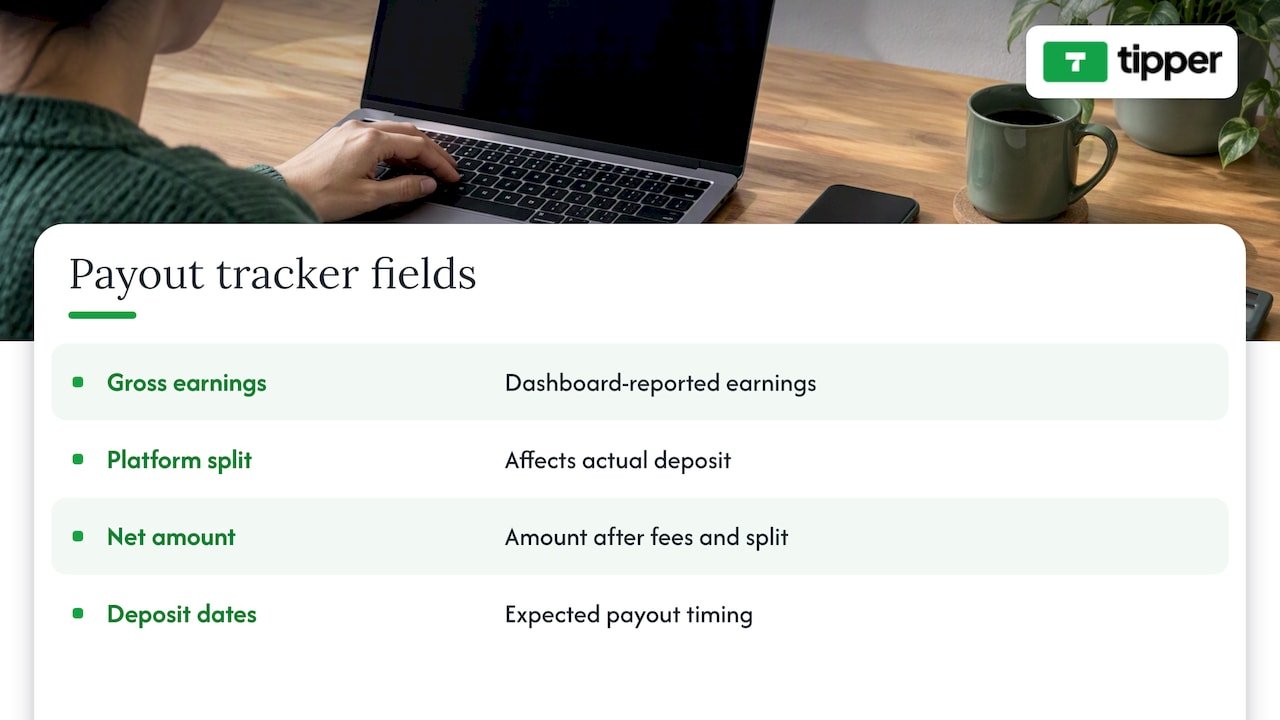
Build a simple habit around this. Once a week, compare three numbers: what the dashboard says you earned, what fees were taken, and what hit your account. If those do not line up, you want to know before tax season, not during it. Keep screenshots or exports of every payout, and note which platform each one came from, especially if you stream to several sites.
On taxes, the framing is straightforward even when the details are not.
Tips, subscriptions, sponsorships, and sales all count as creator income, and every platform payout should be tracked. If your situation is anything beyond simple, such as income from several countries, equipment write-offs, or a business entity, talk to a CPA.
Treat your tipping income like a small business from day one. Save a portion of each payout for taxes, log your fees as a separate line, and keep your records in one place. Doing it regularly can save you from having to rebuild a year’s worth of payouts from memory.
How do you pick the right tipping setup in a few minutes?
Use this checklist to compare any option, in this order. It works for a tip page, a native feature, or a custom flow, and it is a practical way to compare digital tipping solutions for your channel.
- Ease for the viewer. Can someone pay in one or two taps with Apple Pay or Google Pay, without making an account? Every extra form field costs you tips.
- Overlay integration and alert reliability. Does it give you a widget URL that works as an OBS Browser source, and does the alert fire every time you test it?
- Fees and payout flow. What fees are added, who pays them, and how and when do you receive your money? Look for a clear explanation, not a vague one. Current fee details are on our site.
- Privacy and donor experience. Can supporters send a note, and can you reply with a thank-you? Does the page respect supporter privacy?
- Support and documentation. If an alert breaks shortly before you go live, is there a help page that gets you moving again?
User-friendly tipping platforms tend to win on the first and fourth points, because they reduce friction for the supporter while still giving you a way to connect.
Pro Tip: Score each option from one to five on every line above, then weigh the first two lines double. A setup that is easy to use and reliable on screen may suit you better than one that is cheaper but clumsy.
If you are still deciding whether a link is worth having at all, our piece on why creators need tipping links lays out the case.
What do platform docs and multistream guidance say about tipping?
Three findings from platform documentation and multistream guidance affect almost every decision above.
- Native fan-funding is not charity. Official features such as Super Chat and Bits are not charitable donations. When you run a fundraiser, use the platform’s official charity tools or a recognized fundraising service, because those provide transparent handling and receipts that supporters can use for tax purposes. A personal tip link is for supporting you, and it should never be presented as a charitable gift.
- Keep alert systems segregated when multistreaming. Different platforms have different rules, so confirm each one’s policy before you merge anything. Separate widgets or scene canvases are the safest approach.
- Verify the payment, not the animation. Accepting a payment and showing an alert are separate events. If an alert looks wrong, or never appears, the provider’s own transaction record is what tells you whether the money actually arrived.
These points are worth pinning near your streaming desk. Most tipping problems are not payment failures. They come from mixing up what appears on screen with what appears in your account, or from treating a personal tip like a charity donation.
Why we built a no-account tip link for creators
We built Tipper around one frustration: a viewer feels a spark of appreciation, reaches for their phone, and then hits a sign-up wall. By the time they have made an account, the moment has passed. A no-account link keeps that moment alive. Supporters can tip without creating an account, using Apple Pay or Google Pay.
We also think the thank-you matters as much as the payment. A short note or a quick video reply turns a transaction into a relationship, and that is what brings people back next week. Our goal is for the technology to stay out of the way so the connection stays in front.
Streamers worry about take-home, so here is our stance plainly: a payment processing fee is added at checkout. We would rather you test it than take our word for it. Send yourself a tip and see how it feels from the viewer’s side.
— Tipper
Start tipping in minutes with a Tipper tip link
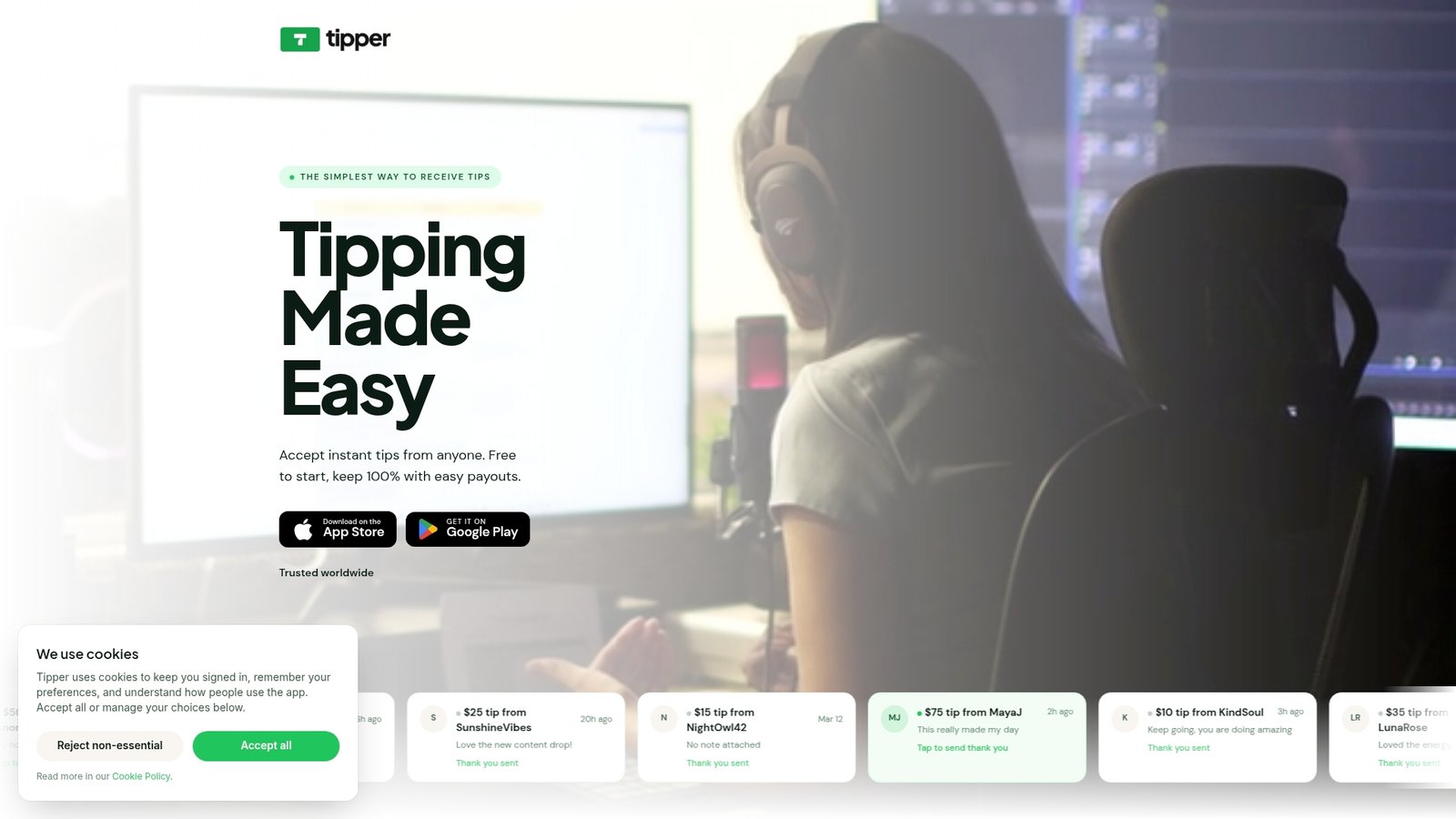
We designed Tipper to help viewers support your stream and make it easier to manage your earnings. You get a personalized link and QR code, Apple Pay, Google Pay, and card payments, no-account tipping for your supporters, and thank-you messages with text, photo, or video.
Here is the quick start:
- Sign up and create your tip page.
- Choose your payment methods.
- Copy your widget URL.
- Add it to OBS as a Browser source.
- Send a test tip and confirm the alert.
Your supporters can choose how to share their information, and you can manage your earnings. If you want a walkthrough of the no-signup flow first, read our creator’s guide to collecting tips with no signup. When you are ready, create your Tipper tip link and get it into your next scene before you go live.
FAQ
What is the best way to accept tips on a livestream?
A personalized tip link is a low-friction option for streamers. Viewers can pay with a wallet like Apple Pay or Google Pay. Test both the payment and the alert before you go live.
Are Super Chat and Bits the same as charity donations?
No. Fan-funding features like Super Chat and Bits are not charitable donations. For fundraisers, use the platform’s official charity tools so donors get transparent handling and receipts.
Can I use the same tip alerts on every platform when multistreaming?
Not safely. Platform rules can prohibit merged activity, so keep tipping and alert systems separate for each destination and read each platform’s terms first.
Are tips taxable?
Yes, tips count as creator income, and you should track every payout from every platform. For anything complex, ask a CPA. Our guide to accepting tips on YouTube also explains how native features and external tip pages fit together.
Sources
- How to Multistream (2026): Twitch, YouTube, Kick & TikTok at Once
- How to Set Up Donations and Alerts for Your YouTube Live Stream · StreamNeo
- Twitch Payout Tracker, Earnings & Income | Earnly


Leave A Comment