


There are three ways to put a tip button on a Wix site. You can install the Wix Tips app, which adds a tip step to checkout. You can fake it with a “Tip” product in Wix Stores. Or you can add an ordinary Wix button that links to an external tip page. Which one works depends on one question: are people already buying something from you, or do you just want fans to say thanks?
If you run a store, a restaurant or a booking business, the first option is built for you. If you are a creator, streamer, writer or freelancer with a Wix site as your home base, the third option is usually the one that works. This guide walks through all three, with the limits of each.
TL;DR
- The Wix Tips app works with Wix Stores, Wix Bookings and Wix Restaurant Orders. It adds tips to orders, not to a free-standing page.
- There is no native “tip me” button for a portfolio, blog or link-in-bio page. A forum workaround is to sell a product called “Tip”, which is clumsy.
- For creators, the cleanest setup is a regular Wix button that points to a tip link. Supporters can pay with Apple Pay or Google Pay without creating an account.
- Pick preset amounts deliberately and set a sensible minimum so that fees do not eat small tips.
Table of Contents
- What a Wix tip button can and can’t do
- Option 1: The Wix Tips app (for stores, bookings and restaurants)
- Option 2: The “Tip” product workaround
- Option 3: A Wix button that links to a tip page
- Wix Payments, Stripe or a dedicated tip link
- Our perspective: a tip should take one tap
- Choosing amounts that actually get tipped
- Where to place the button on a Wix site
- Try Tipper on your Wix site
- Common problems and fixes
- FAQ
- Sources
What a Wix tip button can and can’t do
People search for “Wix tip button” and mean two different things.
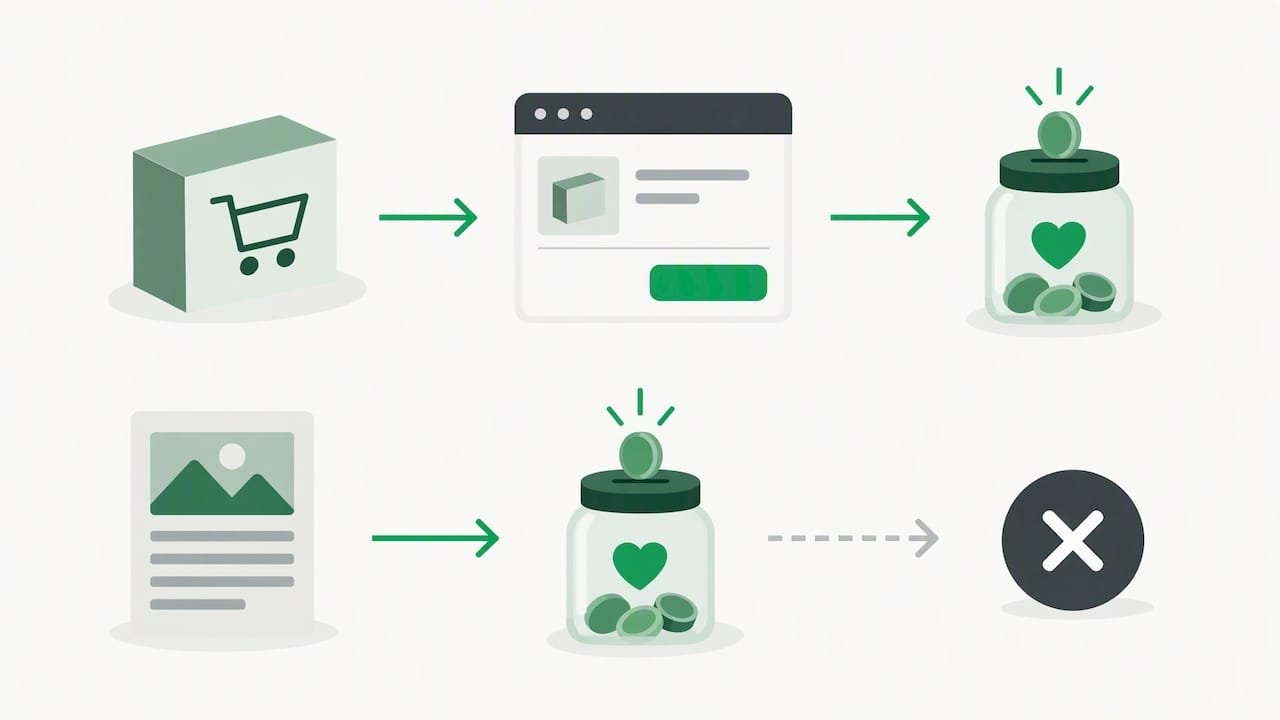
The first meaning is a tipping step during a purchase: a customer orders a haircut, a meal or a product and adds 15% on top. Wix handles this with an app.
The second meaning is a standalone button: someone reads your article, watches your video or likes your work and wants to send you $5. Nothing about that involves an order.
Built-in checkout tipping is tied to the checkout flow. That makes it a good fit for product-based stores where a customer is already paying. It is a poor fit for an influencer who wants a dedicated support link, as this overview of Wix checkout customization also points out. Keep that split in mind and the rest of the options sort themselves out.
Option 1: The Wix Tips app (for stores, bookings and restaurants)
Wix’s current tipping app lets customers show appreciation when they pay, and it can be managed directly on your site. According to the Wix Help Center, it works with e-commerce apps such as Wix Stores, Wix Bookings and Wix Restaurant Orders.
How to set it up
- Open the Wix App Market from your site’s dashboard.
- Search for Wix Tips (New) and click Add to Site.
- Click Get Started. If you still have the old Wix Tips app, Wix tells you to remove it first.
- Turn on the option that lets clients add a tip at checkout. The first time, you need to install the Tip plugin.
- Choose whether tips are percentages of the order or fixed amounts such as $2.00 or $5.00, and pick a default selection.
You can also let admins add a tip when collecting payment, for example from the booking calendar or the Orders dashboard. For appointments with several staff members, the Help Center says you can split tips between them proportionally or equally.
If you take payments in person, Wix has separate guides for collecting tips in Wix Mobile POS, where tipping is switched on from the Manage tab in the Wix app.
Where it falls short for creators
The app attaches a tip to an order. If nobody is checking out, there is nothing to attach it to. A visitor who loves your free newsletter has no way to use it. And you cannot paste a checkout tip widget into your Instagram bio.
If your site sells products or services and you want guidance on presets, our post on adding a tipping option to your checkout process covers the design side.
Option 2: The “Tip” product workaround
A long-running thread on the Wix Studio forum describes a workaround for tipping in Wix Stores: create a product named “Tip” and add an Add to Cart button on your cart page. The thread dates from February 2020, so check what your editor offers today before copying it.
It can work, but consider the costs:
- Visitors go through a full cart and checkout for a $3 gift. That is a lot of friction for a small amount.
- A fixed-price product means fixed tip sizes unless you build several variants.
- Customers may be asked for shipping or account details, depending on how your store is set up.
- Your tip shows up in your orders list next to real sales, which muddies your reporting.
This is a stopgap for store owners who must keep everything inside Wix. For a creator, it is more machinery than the job needs.
Option 3: A Wix button that links to a tip page
This is the approach most creators end up using, and it takes about ten minutes.
The idea is simple. Wix is where your content lives. The payment page lives elsewhere, and a normal Wix button connects the two. Because Wix’s tipping app is checkout-based, an external tip link is the practical route for a standalone “support me” button. The same advice applies to the Wix App Market in general: it provides add-ons for a site rather than standalone apps, so check whether a tipping app plugs into your checkout or needs an external link.
Step by step
- Create your tip page and copy its link. With Tipper, this is your personalized link.
- In the Wix Editor, add a button from the Add panel.
- Label it with an action and a reason, such as “Buy me a coffee” or “Say thanks with a tip”.
- Set the button’s link to your tip page. Opening it in a new tab keeps visitors on your site.
- Place it where gratitude peaks: the end of a post, beside a download, under a video embed and in your footer.
- Test it on your phone. Most tips come from mobile visitors, and a wallet button that does not load is a lost tip.
When you want a popup instead
Some creators prefer a small popup or floating button that follows the reader. Wix does not offer that as a tip feature, but you can embed a third-party widget. Wix lets you add code through the dashboard under Settings, then Custom Code, which is the standard way to place scripts across the whole site, as this Wix popup guide explains. Keep the amount of script small so it does not slow your pages.
If you build with Velo, the Wix Studio forum has a useful reminder: custom elements only react to clicks when the element ID matches the one in your code and the click handler is enabled in the properties panel. Most of “my button does nothing” problems come down to that.
A tip button only pays off if people reach your page. If you are working on that, a dedicated Wix SEO automation tool can handle keyword research and content planning, which leaves you more time for the content that earns tips.
Wix Payments, Stripe or a dedicated tip link
It is tempting to run tips through whatever payment provider your Wix site already uses. Two things to weigh.
First, a store payment setup is designed for checkouts. A comparison of Wix Payments and Stripe notes that Wix Payments is built around internal site checkouts, while Stripe offers broader international and digital wallet support. Digital wallets matter for tipping because the less typing, the more tips.
Second, a standard checkout asks for details that a tip does not need. Tipping is an impulse. The fewer fields, the better the conversion. Our guide to payment processing for tips explains how fees are structured, and setting up credit card tipping shows what the supporter sees.
Quick comparison
| Wix Tips app | “Tip” product | Button to a tip link | |
|---|---|---|---|
| Best for | Stores, bookings, restaurants | Store owners who must stay in Wix | Creators, freelancers, bloggers |
| Needs an order | Yes | Yes (a cart purchase) | No |
| Works from social bios | No | Awkward | Yes |
| Supporter steps | Part of checkout | Cart, then checkout | One page, wallet payment |
| Setup effort | Low | Medium | Low |
Our perspective: a tip should take one tap
We built Tipper around one observation: the people most willing to thank you are the ones least willing to fill in a form. Every account creation screen, every cart page and every shipping field is a place where a happy supporter gives up.
That is why a Wix tip button that routes into a checkout makes us cautious for creators. It solves the store owner’s problem, which is adding a gratuity to a sale. The creator’s problem is different: turning a moment of appreciation into a payment before the moment passes.
So we designed for the second problem. Supporters tip through your personalized link or QR code without creating an account, paying with Apple Pay, Google Pay or a card. You keep 100% of what you earn, and a small processing fee is added at checkout for the supporter. You can reply with a thank-you note, a photo or a video, which in our experience is what turns a one-time tipper into a regular.
Our advice for a Wix site:
- Use the Wix Tips app if you sell products or bookings and want a gratuity on orders.
- Use a link button if people read, watch or learn from you for free.
- Do not use both on the same page. Two tip prompts split attention and dilute both.
— Tipper
Choosing amounts that actually get tipped
The button gets the click. The amounts decide the result. A few principles hold whichever route you take:
- Offer three presets, not ten. A short list reads as a recommendation. Our post on three custom tip amounts that convert goes through the logic.
- Let people type their own. Some supporters will give more than your top preset, so leave room for it.
- Mind the floor. Processing fees weigh heavily on very small tips. We explain how to set a $1 to $2 minimum that covers fees without scaring off casual supporters.
- Say what the money does. “Helps me publish one more tutorial a month” beats “Support me”.
On Wix Tips specifically, the app lets you choose percentages or fixed amounts and set a default selection. Percentages suit services where the bill varies. Fixed dollar amounts suit creators and small shops.
Where to place the button on a Wix site
Placement matters more than color. Try these spots, roughly in order of payoff:
- End of long content. After a reader finishes a tutorial or article, they are most grateful.
- Next to free downloads. A template or checklist is a natural prompt.
- About or links page. People who want to support you go looking for it here.
- Sticky footer or header. Low pressure, always available.
- Social bios. Link straight to the tip page. Our post on a creator tip link strategy covers presets and payouts, and getting paid with a personalized tip link covers the basics.
If you also meet people offline, at events, workshops or markets, a QR code to the same page lets you collect tips there too. For businesses that want an alternative to register-based tipping, see our look at point-of-sale tipping alternatives.
Try Tipper on your Wix site
If you want a tip button on Wix that works for people who are not buying anything, Tipper gives you a personalized link to put behind any Wix button. Supporters pay with Apple Pay, Google Pay or a card, no account needed, and you keep 100% of your earnings. Creating and maintaining an account is free, with no subscription. A small payment processing fee is added at checkout. For a walkthrough of collecting tips without sign-ups, read our creator’s guide.
Common problems and fixes
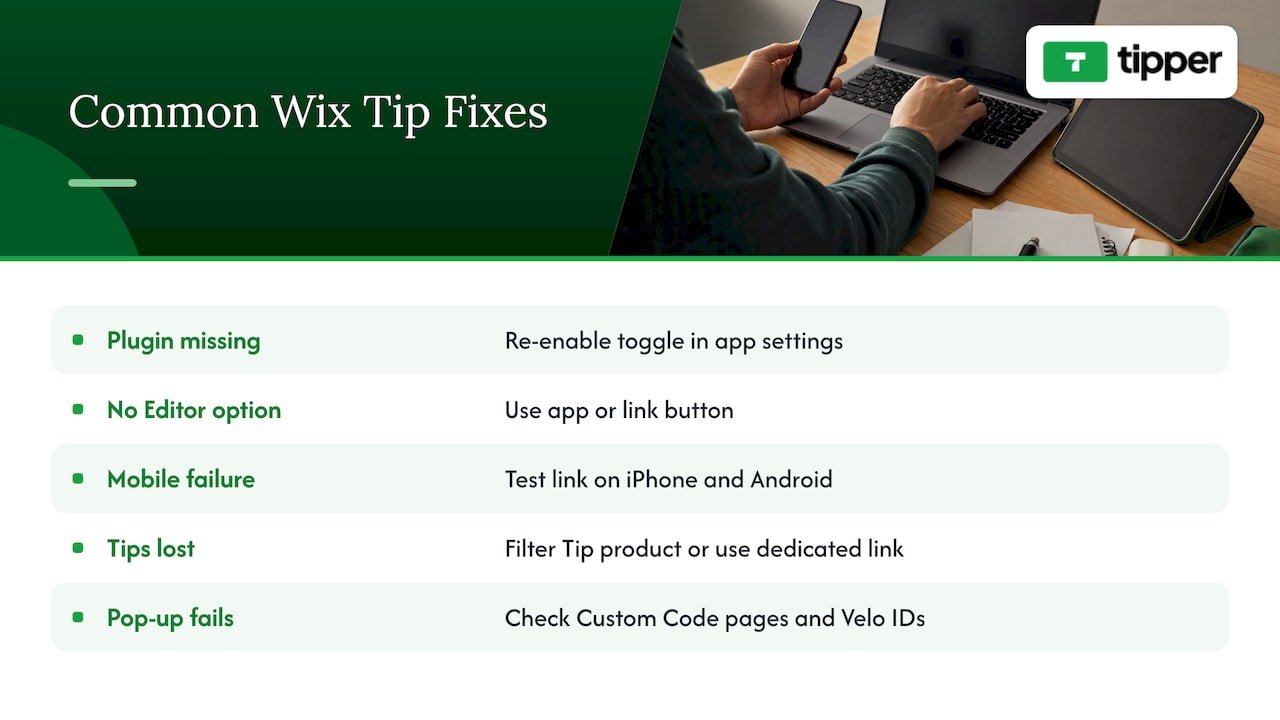
The Tip plugin does not appear at checkout. In Wix Tips, the first time you enable client tipping you must install the Tip plugin. If you skipped the prompt, return to the app settings and enable the toggle again.
You cannot find a tip option in the Editor. There is no standalone tip element. Use the app for orders or a link button for everything else.
The button works on desktop but not mobile. Open the live site on your phone and check that the link opens the tip page. Wallet payments depend on the visitor’s device and browser, so test on an iPhone and an Android phone if you can.
Tips get lost among orders. If you used the “Tip” product workaround, filter your orders by that product, or move to a dedicated link so tips are reported separately.
Your pop-up code does nothing. Check that the script is added through Custom Code and loads on the pages you expect. For Velo code, confirm element IDs and handlers as described above.
FAQ
Does Wix have a built-in tip button?
Wix has a Wix Tips app that adds tipping to checkout for Wix Stores, Wix Bookings and Wix Restaurant Orders. It is not a standalone button for a blog or portfolio. For that, link a regular button to an external tip page.
Can I add a tip button to a Wix site without a store?
Yes. Add a normal button in the Wix Editor and set its link to your tip page. You do not need Wix Stores or any order flow, because the payment happens on the external page.
Do my supporters need an account to tip me?
Not with Tipper. Supporters pay through your link with Apple Pay, Google Pay or a card and do not create an account. That keeps the path short, which helps small, spontaneous tips.
Can I collect tips at checkout and also from fans?
Yes, but keep them separate. Use the Wix Tips app for customer orders and a single link button for fans of your free content. Showing two tip prompts on the same page tends to confuse visitors.
How much does Tipper cost?
Creating and maintaining a creator account is free with no subscription, and creators keep 100% of their earnings. A small payment processing fee is added at checkout on each tip. We do not publish a fixed fee amount here, so check tipper.app for the current details.
Sources
- Wix Help Center: Adding and Setting Up the New Wix Tips
- Wix Help Center: Wix Mobile POS, Collecting Tips
- Wix Studio forum: Is there a way to add a Tip option for Wix Stores?
- Wix Studio forum: submit button configuration
- eSEOspace: Wix checkout customization
- Wisepops: How to Add Popups to a Wix Website
- Wiksit: Wix Payments vs Stripe
- Tooltester: What is Wix App Market?




Leave A Comment