


Apple Pay tipping setup for businesses is the process of configuring a payment system to prompt customers to add a gratuity during checkout using their Apple Wallet. Done right, it removes every barrier between a satisfied customer and a tip: no app download, no account creation, no fumbling for cash. Digital tipping systems using NFC and wallet technology can launch in under 24 hours without disrupting your existing point-of-sale setup. For freelancers and small business owners, that speed and simplicity translates directly into higher staff earnings and better client relationships.
What tools do you need for Apple Pay tipping setup?
The hardware and software requirements for accepting Apple Pay tips depend on whether you want a dedicated card reader or a fully software-based solution. Both paths are viable. The right choice depends on your transaction volume and existing setup.
Hardware options:
- Contactless NFC card reader: Any reader that supports NFC contactless payments will work with Apple Pay. Square Reader, Stripe Terminal, and similar devices fall into this category.
- Tap to Pay on iPhone: This is the zero-hardware option. Tap to Pay on iPhone requires only a compatible iPhone and a supported payment app. No card reader purchase needed.
- Traditional POS terminals: Terminals from providers like Clover or Toast support Apple Pay if NFC is enabled in their settings.
Software and subscription requirements:
| Requirement | Details |
|---|---|
| Payment processor | Must support Apple Pay and have a tipping feature built into the app |
| QuickBooks Payments subscription | Required to access the Tips feature in QuickBooks GoPayment |
| Compatible payment app | Apps like QuickBooks GoPayment, Stripe, or Square must have tip prompts enabled |
| iOS version | iPhone must run a current iOS version to support Tap to Pay |
QuickBooks GoPayment requires an active QuickBooks Payments subscription before the tip settings become available. This is a common sticking point for new users who expect tipping to be on by default.
Pro Tip: If you are a freelancer or solo operator, Tap to Pay on iPhone is the fastest path to accepting Apple Pay tips. You skip the hardware cost entirely and can be ready to accept tips the same day.
How do merchant-collected and customer-prompted tips differ?
Two distinct tipping models exist for wallet-based payments, and choosing between them shapes both the customer experience and your back-end reconciliation process.
Merchant-collected tip means your payment app or POS presents a tip screen before the customer taps their device. The customer selects a tip amount, and that total is added to the bill. Your staff or the app then presents the final amount for Apple Pay authorization. This model gives you full control over tip suggestions, screen design, and prompt timing.
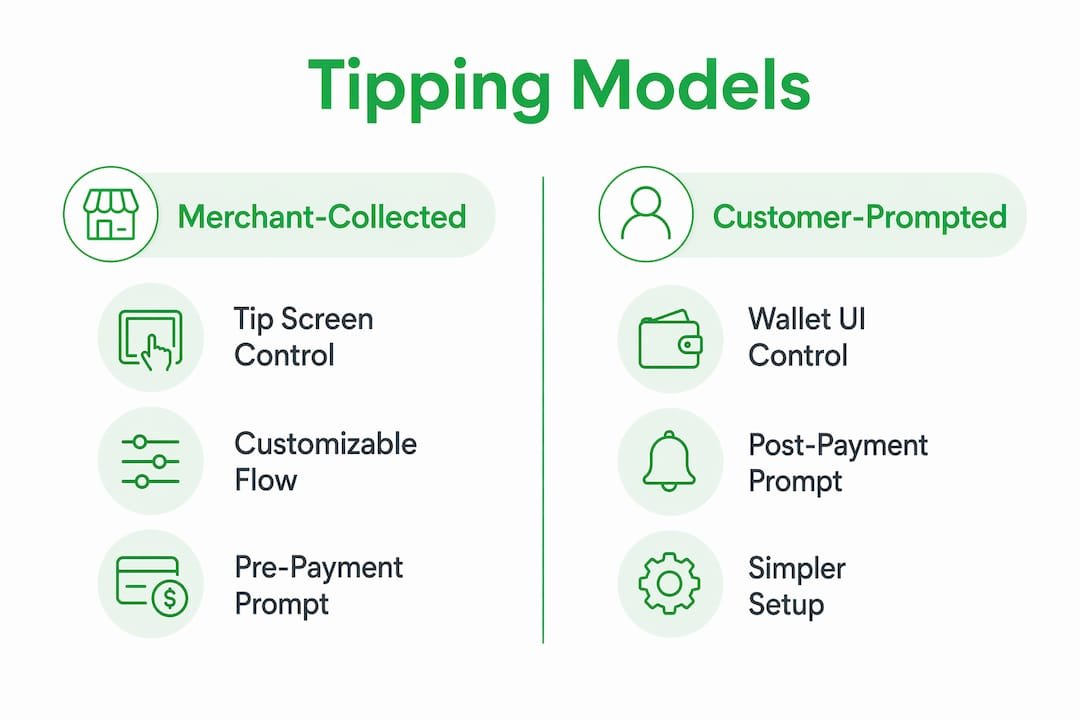
Customer-prompted tip means the Apple Wallet UI itself asks the customer to add a tip after the payment amount is presented. The merchant does not control the tip screen. This approach reduces development work because Apple handles the prompt, but you lose the ability to customize suggested percentages or dollar amounts.
| Feature | Merchant-collected tip | Customer-prompted tip |
|---|---|---|
| Who controls the tip screen | Merchant / payment app | Apple Wallet UI |
| Customization of tip options | Full control | Limited |
| Development overhead | Higher | Lower |
| Customer familiarity | Depends on app design | Consistent Apple UI |
| Reconciliation | tipAmount in webhook payload | tipAmount in webhook payload |
Regardless of which model you use, tip and base amount are authorized in a single transaction. This matters for accounting: you cannot split the tip from the base charge in your payment records after the fact. Both amounts arrive together in the authorization, and your webhook payload will include a "tipAmount` field for reconciliation.
Pro Tip: If you are building a custom checkout flow, merchant-collected tipping gives you the most flexibility to test different tip suggestion amounts and prompt placements. Start with three options: a low percentage, a mid percentage, and a custom dollar entry.
Choosing between the two models also affects payment flow UX in ways that directly influence whether customers tip at all. Prompts that appear at the wrong moment, or that feel like an interruption, reduce tip acceptance. Position the tip screen as a natural step in the checkout sequence, not an afterthought.
How to enable Apple Pay tipping with QuickBooks GoPayment
This walkthrough covers the most common setup path for small businesses: QuickBooks GoPayment with Tap to Pay on iPhone. The same logic applies to other processors, but the menu labels will differ.
-
Confirm your QuickBooks Payments subscription is active. Log into QuickBooks Online and verify that your payment processing plan is current. The Tips feature is locked behind this subscription. If you are on a free trial, tip settings will not appear.
-
Open QuickBooks GoPayment and navigate to Settings. Tap the menu icon, select “Settings,” then find the “Tips” section. Toggle tips on. You will see options to show the tip prompt before or after the customer selects their payment method.
-
Configure your tip options. QuickBooks tip settings let you offer percentage-based tips, fixed dollar amounts, or both. For transactions under $10, the app automatically switches to dollar-based tip options. This reduces customer hesitation on small purchases where a 20% tip might feel disproportionate.
-
Set up Tap to Pay on iPhone. Open your payment app, select “Tap to Pay on iPhone” as your payment method, and enter the transaction amount. The app will display a prompt for the customer to hold their iPhone or Apple Watch near yours.
-
Present your iPhone to the customer. The customer taps their device or card near the back of your iPhone. Authentication via Face ID, Touch ID, or passcode completes the transaction. No card reader, no receipt printer, no extra hardware.
-
Verify tip capture in your transaction records. After your first tipped transaction, check the QuickBooks GoPayment transaction history to confirm the tip amount appears separately from the base charge. This confirms your webhook and reporting are capturing tips correctly.
-
Train your staff on the flow. Walk every team member through a test transaction before going live. Staff who understand the tap proximity requirement and authentication steps prevent the most common failure point: customers who hold their phone too far from the reader.
Pro Tip: Run a $1 test transaction with tips enabled before your first real customer interaction. This confirms your settings are live and gives your staff hands-on practice with the tap-and-authenticate sequence.
Adjusting tip prompt timing based on transaction size is one of the most underused levers in mobile payment tipping setup. Showing the tip screen before payment method selection works well for service businesses where tipping is expected. Showing it after works better in retail contexts where tipping is optional and a pre-payment prompt can feel awkward.
What causes Apple Pay tipping to fail, and how do you fix it?
Most Apple Pay tipping failures fall into three categories: physical setup issues, customer unfamiliarity, and refund handling errors. Each has a direct fix.
Physical and authentication issues:
- Device proximity: The customer’s iPhone or Apple Watch must be within a few centimeters of the NFC reader or your iPhone. Failure to be close enough is the single most common cause of Apple Pay not working. Post a small sign near your reader showing the correct tap position.
- Authentication failure: If a customer’s Face ID fails in low light or with a mask, the device falls back to passcode. Train staff to reassure customers that this is normal and not a security issue.
- NFC disabled on terminal: Some POS terminals ship with NFC turned off. Check your terminal’s settings menu or contact your processor’s support line to enable it.
Customer adoption barriers:
- No app download is required for Apple Pay. This is your strongest selling point. A small sign that reads “Tap to tip with Apple Pay. No app needed.” removes the most common customer objection before they voice it.
- Subtle, non-pressuring prompts outperform aggressive tip screens. Customers who feel pressured to tip leave with a worse impression of your business, even if they do tip.
Refund handling:
When a transaction includes a tip, the refund must cover the entire transaction or a partial amount per your business policy. Tips cannot be refunded independently because the tip and base amount are combined in a single authorization. Build this into your refund policy and communicate it to staff before they face a customer dispute.
Removing friction for customers by using their existing Apple Pay wallet without additional apps improves tip conversion and builds goodwill. Every extra step you remove from the tipping process increases the likelihood that a satisfied customer follows through.
Key takeaways
Successful Apple Pay tipping setup requires the right payment processor, a clear choice between merchant-collected and customer-prompted tip flows, and staff trained to handle proximity and authentication issues before they become problems.
| Point | Details |
|---|---|
| Hardware flexibility | Tap to Pay on iPhone eliminates card reader costs for freelancers and small businesses. |
| Two tipping models | Merchant-collected tips offer more control; customer-prompted tips reduce development work. |
| Single authorization | Tips and base amounts are combined in one transaction, limiting independent refunds. |
| Prompt timing matters | Showing tip screens before or after payment selection affects acceptance rates by transaction size. |
| Staff training is critical | Proximity and authentication coaching prevents the most common Apple Pay failures at checkout. |
Why the friction you ignore is costing you real money
I have watched business owners spend weeks debating which POS terminal to buy while ignoring the fact that their current setup already supports Apple Pay. The hardware conversation is a distraction. The real question is whether your tip prompt appears at the right moment and whether your staff can guide a customer through the tap in under five seconds.
The businesses I have seen get tipping right share one habit: they treat the tip prompt as part of the service experience, not a technical afterthought. They test the flow themselves, they time the prompt to feel natural, and they brief their staff the same way they would brief them on a new menu item. The ones who skip that step end up with tip settings enabled but tip rates that barely move.
There is also a longer-term shift worth watching. Consumer expectations around contactless tipping are moving fast. Customers who tip via Apple Pay at a coffee shop now expect the same option at a food truck, a hair salon, and a freelance photography session. Businesses that set this up now build the habit with their customers before it becomes table stakes.
The one thing I would push back on in conventional advice: do not obsess over which tip percentages to suggest. The difference between 18%/20%/25% and 15%/20%/25% is marginal. What moves the needle is removing every possible reason for a customer to abandon the tip screen entirely. That means fast authentication, clear signage, and a staff member who can say “just tap your phone right here” without hesitation.
— Steve
How Tipper makes Apple Pay tipping setup simple
Setting up Apple Pay tipping through a traditional POS system works, but it requires a subscription, hardware decisions, and ongoing configuration. Tipper takes a different approach.
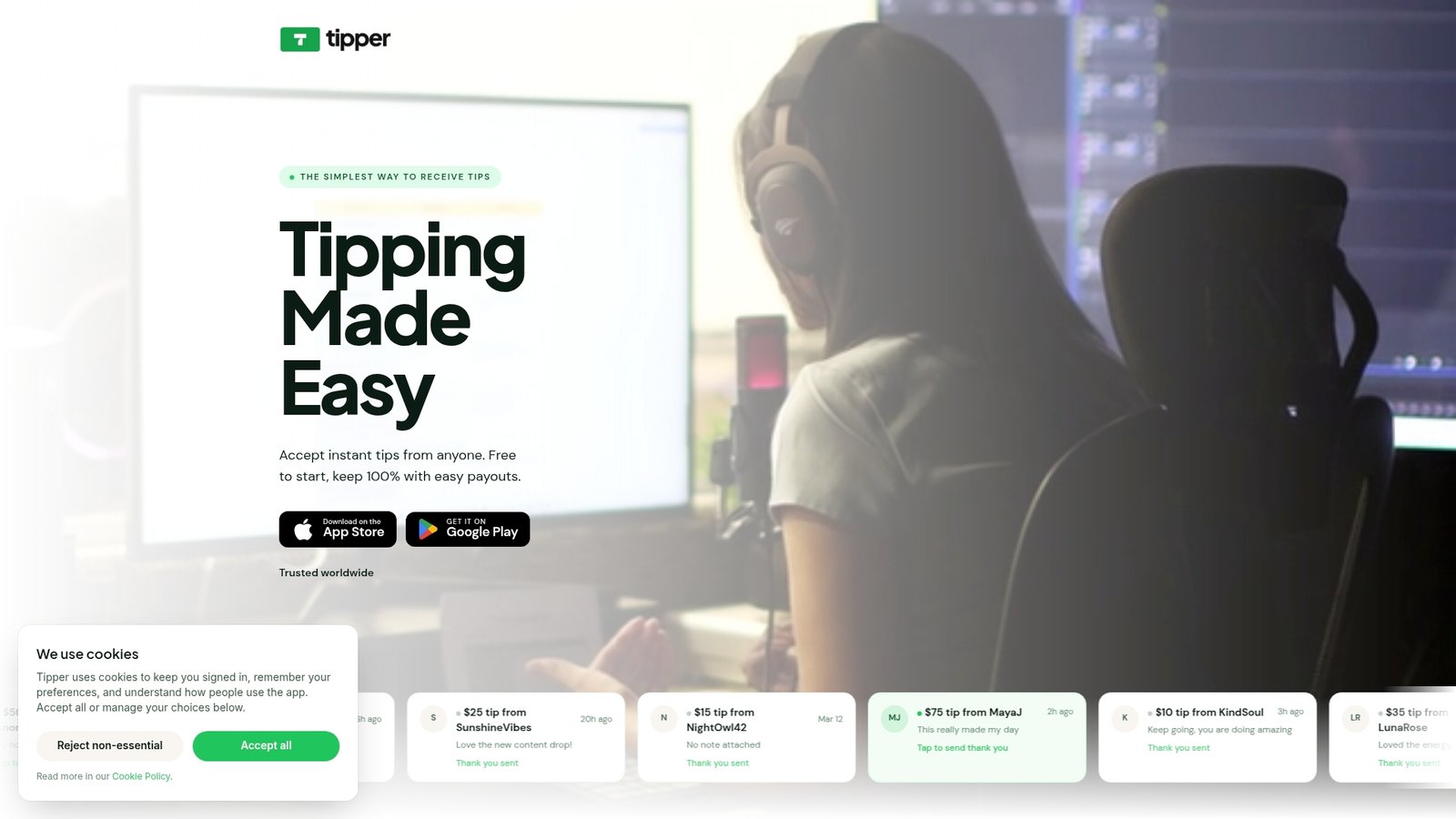
Tipper gives you a personalized tipping link that customers open and pay through instantly using Apple Pay or Google Pay. No account required on their end. No app to download. You keep 100% of every tip. Setup takes minutes, not days. For freelancers, creators, and service businesses that want to start accepting tips without touching their POS configuration, get started with Tipper today and have your first tip link live before your next client interaction.
FAQ
Does Apple Pay tipping require a card reader?
No. Tap to Pay on iPhone lets you accept Apple Pay tips using only a compatible iPhone and a supported payment app, with no additional hardware required.
Can customers tip with Apple Pay without creating an account?
Yes. Apple Pay uses the customer’s existing Wallet app, so no new account or app download is needed. Platforms like Tipper extend this further by letting customers tip through a link without any account at all.
What happens if a customer wants a refund that includes a tip?
Tips processed through Apple Pay are combined with the base amount in a single authorization. Refunds must cover the full transaction or a partial amount per your policy. Tips cannot be refunded as a separate line item.
How do I enable tipping in QuickBooks GoPayment?
Go to Settings in the QuickBooks GoPayment app, find the Tips section, and toggle it on. An active QuickBooks Payments subscription is required before this option appears.
Why is Apple Pay not working at my NFC reader?
The most common cause is device proximity. The customer’s iPhone or Apple Watch must be within a few centimeters of the reader. If proximity is correct and payment still fails, check that NFC is enabled in your terminal settings and that the customer’s authentication method (Face ID, Touch ID, or passcode) completed successfully.



[…] repeat support. If you want to explore the full range of options available in 2026, including Apple Pay tipping setup and no-fee tipping systems, those resources are worth your time. Start with Tipper and have your […]