


The quickest reliable fix is to skip raw pasted URLs and use your email client’s built-in link tool: highlight your text, click “insert link,” and type the full address starting with https:// (or mailto:/tel: for contact info). Images can carry a link too, but text is more reliable across Gmail, Outlook, and Apple Mail. Whatever you build, send a test email to a second account before trusting it.
TL;DR:
- Using your email client’s link tool with a full
https://prefix ensures your signature links remain clickable across Gmail, Outlook, and Apple Mail.- Place your primary call to action at the top of your signature, with clear hierarchy and only one focused link to avoid confusing recipients.
- Inline text links with descriptive anchor text outperform social icon rows in visibility and engagement, especially on mobile devices.
- Properly formatted image icons need individual anchor tags and should be hosted over
https://to prevent broken icons or blocked content.- Testing your signature by forwarding emails or checking in dark mode and on mobile devices helps ensure links work reliably for all recipients.
Table of Contents
- Getting Your Email Signature Tip Link Right: What Comes First
- How to Add a Clickable Link Using Gmail, Outlook, and Apple Mail
- Hand-Coded HTML Signatures That Actually Survive Client Quirks
- Linking Images and Social Icons the Right Way
- Accessibility and Mobile Considerations for Clickable Links
- Trackable Links and Simple UTM Tips for Signature CTAs
- Ready-to-Use Signature Templates by Goal
- Troubleshooting: When the Link Just Won’t Click
- A Working Signature Link Is a Small Habit With Outsized Payoff
- Turn Your Signature Into a One-Click Way to Get Tipped
- Sources
- FAQ
Getting Your Email Signature Tip Link Right: What Comes First
Before you touch the link tool, decide what your signature is actually for. A signature crammed with five competing calls to action confuses readers and none of them get clicked. Get the basics locked down first. Then give the link a clear home.
Your name, title, and company go at the top, in that order of visual weight, because that’s what a recipient scans for first to confirm who’s emailing them. Below that, list one or two direct contact methods, phone or email, not both plus a fax line nobody uses anymore. HubSpot’s guidance on professional email signatures makes a point worth repeating here: brevity and hierarchy matter more than cramming in every possible detail.
Then comes the decision that actually matters for this article: your one primary call to action. That might be a website, a booking page, or an email signature tip link if you’re a creator or freelancer who wants supporters to send appreciation directly. Pick one. A signature with a “Book a call,” a “Follow me,” and a “Buy my course” link all fighting for attention performs worse than a signature with just one clear ask.
A few things to settle before you build anything:
- Decide if your CTA is inline text (“Schedule a 15-minute call”) or an icon row for social links, not both competing for the same visual space.
- If you email both clients and coworkers, consider a stripped-down internal signature and a fuller external one with your CTA link.
- Keep your primary link visually separate from social icons so it doesn’t get lost in a row of logos.
- Reserve icon-only rows for secondary links; your main CTA deserves its own line of text.
How to Add a Clickable Link Using Gmail, Outlook, and Apple Mail
Each major client handles this differently, and the button labeled “insert link” isn’t always where you’d expect it. Here’s what actually works in each one.
- Gmail: Open Settings (the gear icon), go to “See all settings,” and scroll to the Signature section. Type your text, highlight the words you want linked, click the link icon in the small toolbar above the signature box, and paste the destination. Always include the
https://prefix, since Gmail sometimes won’t auto-detect a bare domain as clickable. - Outlook (web and desktop): In Outlook on the web, go to Settings > Mail > Compose and reply > Signatures. Highlight your CTA text, click the link icon in the toolbar, and enter the URL. Desktop Outlook works almost identically through File > Options > Mail > Signatures, though older versions sometimes show a plain “Hyperlink” button instead of an icon. Some versions also let you insert a styled button image if you want something more visual than underlined text.
- Apple Mail: Open Mail > Settings > Signatures, write your text, select it, and choose Edit > Add Link (or right-click and pick the same option) to paste your URL. Apple Mail is notoriously picky about formatting carried over from other apps, so if you’re pasting in a signature built elsewhere, strip the formatting first and rebuild the link natively.
The single biggest reason links fail across every client is a missing or malformed protocol. Typing “tipperapp.com” without https:// often gets treated as plain text, not a hyperlink, and the same rule applies to mailto: for email addresses and tel: for phone numbers, according to Stripo’s breakdown of clickable signature links.
Pro Tip: Send yourself a test email, then forward it to a completely different email address and check the link again. Forwarding sometimes strips formatting or converts hyperlinks to plain text, and that’s a failure mode you won’t catch by just sending to yourself.
Hand-Coded HTML Signatures That Actually Survive Client Quirks
If you’ve outgrown the built-in editors, hand-coding gives you more control, but only if you respect how email clients render HTML, which is nothing like how a browser does. Outlook in particular still renders parts of your signature using Microsoft Word’s HTML engine, which breaks modern CSS in ways that would surprise most web developers.
A few non-negotiable rules for this approach:
- Use absolute URLs everywhere:
https://yoursite.com, never a relative path, and usemailto:andtel:schemes for contact links. - Build your layout with HTML tables instead of CSS flexbox or grid; tables are the one layout method nearly every client renders consistently.
- Apply styling with inline CSS attributes on each element rather than a
<style>block, since many clients strip embedded stylesheets entirely. - Keep your signature under roughly 10KB of HTML; some clients silently drop parts of oversized signatures.
For actual patterns, think in three types: a simple text link (“Tip my work” underlined and colored), a button-style link (a colored table cell wrapping an anchor tag to mimic a real button), and a linked logo or headshot placed as its own image with its own <a> tag. Never combine all your information into one giant linked image. Image-only signatures break the moment a recipient’s client blocks images by default, which happens often enough that MailerLite’s signature guidance recommends staying text-first rather than image-first.
Pro Tip: Keep a plain-text version of your CTA link directly under any image-based button. If the image doesn’t load, the reader still sees a working link instead of a blank space.
Linking Images and Social Icons the Right Way
Every icon needs its own individual link, not a shared one. Image maps, where a single image has multiple clickable regions, aren’t reliably supported by email clients, so an icon row should always be built as separate images sitting side by side, each wrapped in its own anchor tag, as Stripo notes in its clickable-links guidance.
A few practical details make the difference between icons that work and icons that quietly fail:
- Host every image over
https://, neverhttp://, since mixed content gets blocked or flagged by some clients and corporate mail filters. - Add descriptive alt text to each icon (“LinkedIn profile,” not just “icon”), so the link still makes sense if images don’t render.
- Place a small text link near your main image CTA as a fallback, since text links survive forwarding and reply chains far better than images do.
- Keep icons small, roughly 20 to 24 pixels square, and compress image files so the whole signature loads fast even on a slow connection.
Accessibility and Mobile Considerations for Clickable Links
A link that only certain readers can find isn’t doing its job. Color alone should never be the only signal that text is clickable, because that fails for color-blind readers and disappears entirely in dark mode, where blue links can render as a color barely distinguishable from body text. Pair color with an underline and slightly bolder weight so the link is obvious regardless of display settings, a combination Stripo recommends specifically for signature links.
Anchor text matters just as much as styling. “Click here” tells a screen reader user nothing about where the link goes; “Schedule a call” or “Tip my work” does. This lines up with basic WCAG link-purpose guidance on writing descriptive alt text and maintaining sufficient contrast so signatures work for people using screen readers or low-vision settings.
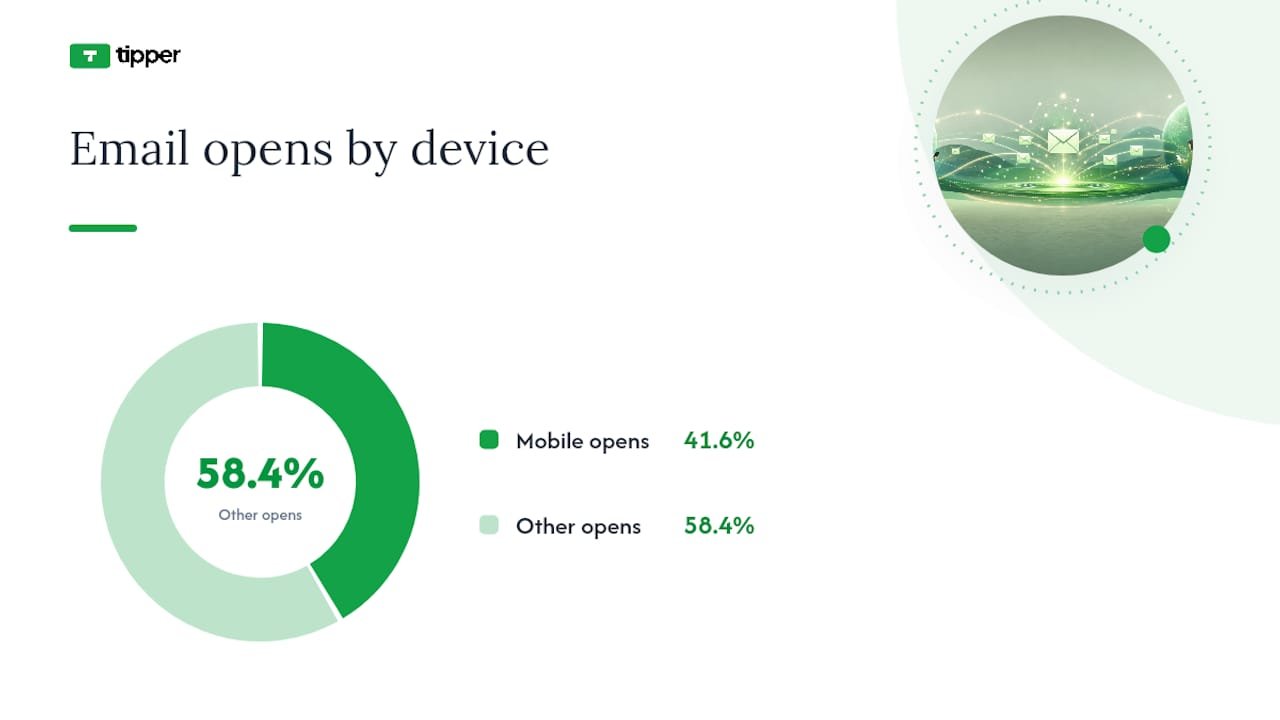
Mobile clients account for roughly 41.6% of email opens, according to MailerLite’s data, which means a signature that only looks good on a desktop screen is failing a huge share of your recipients. On mobile, keep link text large enough to tap accurately and give tappable elements enough surrounding space that a thumb doesn’t accidentally hit the wrong link.
Before you consider a signature finished:
- Test in both light and dark mode, since underlines and color contrast behave differently in each.
- Check on an actual phone, not just a resized browser window.
- Run through a screen reader if you can, or at minimum confirm every link has real anchor text, not a bare URL or “click here.”
Trackable Links and Simple UTM Tips for Signature CTAs
If you’re running a business signature or a marketing campaign through email, a basic UTM tag on your signature link lets you see how much traffic actually comes from it. A minimal pattern looks like ?utm_source=signature&utm_medium=email, added once to your CTA link, nothing more elaborate needed for most individual or small business use. HubSpot’s guidance on professional signatures treats trackable links as a standard part of measuring signature performance, not an advanced move reserved for marketing teams.
Personal signatures, on the other hand, usually don’t need tracking parameters at all. A creator sharing a tip link with friends and followers gains little from UTM clutter, and a long tagged URL looks worse than a clean one.
- Use UTMs on business or marketing signatures where results get reported; skip them on personal or creator signatures unless you specifically want the data.
- A branded short link or a simple redirect page keeps the visible URL clean even if tracking happens behind it.
- For payment or tip links specifically, avoid stuffing query strings with anything beyond basic source tracking. Payment pages should collect exactly what’s needed to process a tip, nothing extra riding along in the URL.
Ready-to-Use Signature Templates by Goal
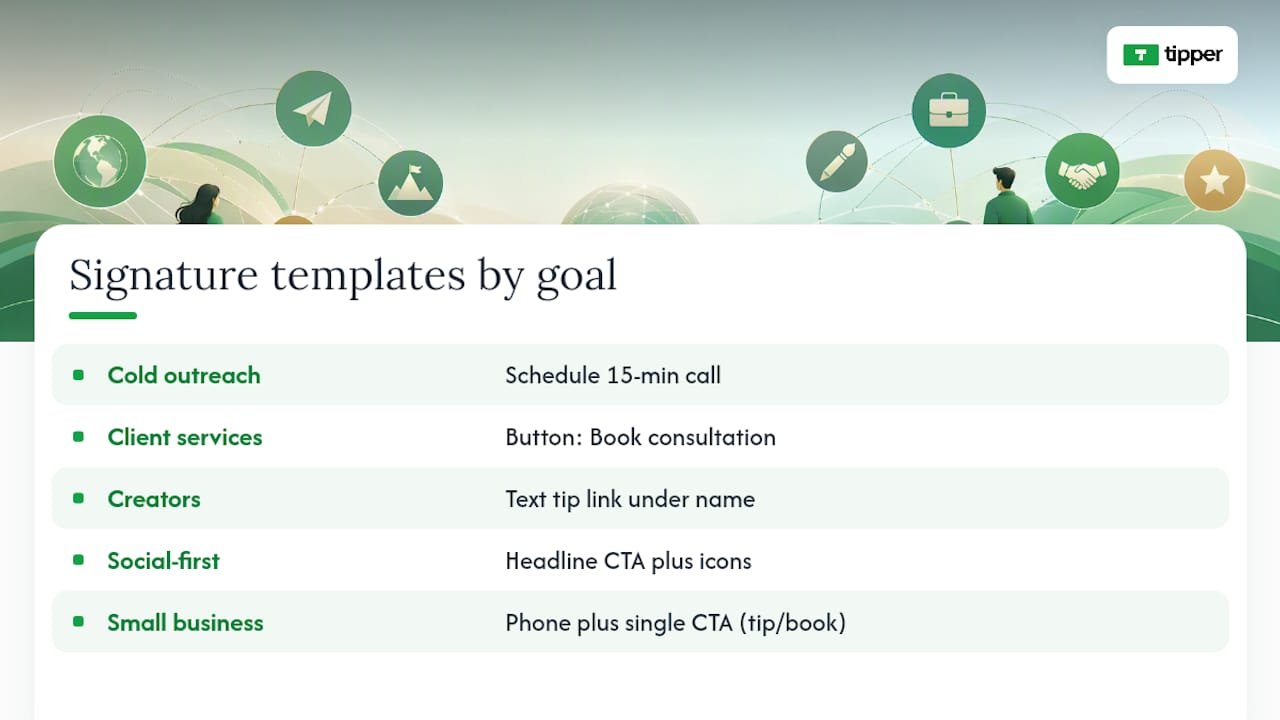
Different goals call for different phrasing, and the anchor text you choose should tell the reader exactly what happens when they click.
For cold outreach, keep it low-friction: “Jordan Reyes, Account Manager, Acme Co. / [Schedule a 15-minute call]” works better than a generic “Contact me,” because it names the exact ask and the exact time commitment.
For client-facing service providers, a booking-first signature reads cleaner: name and title, then a single line, “[Book a consultation],” styled as a button rather than plain text, since a visual button reads as more official in a client relationship.
For creators and freelancers, this is where a tip link earns its place. Something like “Maya Chen, Illustrator / [Tip my work]” placed directly under your name performs better than burying it in a social icon row, since a labeled text link gets noticed in a way an icon rarely does.
For social-first creators, an icon row still has a place, but pair it with one dominant text link above it: “[Support my work]” as the headline CTA, then Instagram, YouTube, and X icons below as secondary options.
For small business owners, a mix works well: name, business name, phone with tel: link, and a single CTA like “[Leave a tip]” or “[Book an appointment],” depending on which action matters more to that business.
If you’re deploying signatures across a team, hosting one shared asset with per-user insertion links prevents the slow drift where everyone’s signature quietly diverges over time, a pattern SigFinch outlines for keeping organizational signatures consistent without re-editing each person’s HTML by hand.
Troubleshooting: When the Link Just Won’t Click
Start with the boring explanations before assuming something’s fundamentally broken.
- Check the protocol first. A link missing
https://,mailto:, ortel:is the single most common cause of a “link” that’s actually just plain text. - If you’re on Gmail and your signature has a lot of formatting or images, check whether you’ve hit Gmail’s signature size limit, since oversized or overly complex HTML can get silently truncated, taking your link with it.
- Confirm you haven’t built an image-only signature with no underlying text link. If the image doesn’t load, there’s nothing left to click.
- Send test emails to Gmail, Outlook, and Apple Mail addresses, then forward and reply to each to see if the link survives.
- If nothing else works, fall back to a plain-text URL on its own line. It’s not elegant, but a visible, copyable link beats an invisible broken one every time.
A Working Signature Link Is a Small Habit With Outsized Payoff
A tip link sitting quietly under your name doesn’t ask anything of the reader, and that’s exactly why it works. Nobody has to remember to visit your page later or dig up a payment app; the option is just there, every time you email someone who already trusts your work enough to be corresponding with you.
The engagement is usually modest per email, but it compounds across every message you send for the rest of the year without you doing anything else. Tipper builds its tip links specifically so creators can drop one into a signature without asking senders to create an account first, which removes the exact friction point that kills most passive monetization attempts.
— Tipper
Turn Your Signature Into a One-Click Way to Get Tipped
Tipper is the fastest way to turn that signature line into money in your account, without asking a single sender to sign up for anything. You create a personalized tip link in a few minutes, drop it into your signature with anchor text like “Tip my work” or “Support my work,” and every sender can pay instantly with Apple Pay, Google Pay, or a card, no account required on their end.

Supporters can even leave a text, photo, or video thank-you note back to you, which turns a one-off tip into an actual moment of connection rather than a silent transaction. If you want a head start on wording, Tipper’s guide to why payment links boost engagement and its walkthrough on building a working tip link fast both give templates you can adapt directly into your signature. Set up your link now and add it to your next outgoing email.
Sources
- How to create an email signature with clickable links (Stripo)
- Email signature best practices (MailerLite)
- Professional email signatures (HubSpot)
- Accessibility guidance for email content (FitNYC)
- How to create an email signature (SigFinch)
FAQ
How Do I Put a Clickable Link in My Email Signature?
Open your email client’s signature settings, highlight the text you want linked, click the insert link icon, and paste your URL starting with https://. Always send a test email to a second account to confirm it works before relying on it.
What Are Some Good Taglines for a Tip Link in a Signature?
Short, direct phrases work best: “Tip my work,” “Support my work,” or “Buy me a coffee” all tell the reader exactly what happens when they click, which outperforms vague phrasing like “Click here.”
What Are the Best Practices for Email Signatures in 2026?
Keep the signature text-based rather than image-only, use one clear primary call to action instead of several competing links, and make sure every link uses a full protocol like https:// so it stays clickable across Gmail, Outlook, and Apple Mail.
How Do I Link an Image to a URL in an Email Signature?
Select the image in your signature editor and use the same insert-link tool you’d use for text, pasting the full URL with https://. Add descriptive alt text and a nearby text link as backup in case the image doesn’t load for the recipient.
Why Did My Signature Link Stop Working After Forwarding?
Forwarding and replying sometimes strip formatting or convert hyperlinks into plain text, which is why text-based links with full protocols tend to survive better than image-based ones. If a link consistently breaks on forward, fall back to a plain visible URL on its own line.




[…] Creators: Make Your Email Signature Tip Link Work in Gmail and Outlook […]